Help & Guides
Quick Start
DJReport helps you create professional GEMA music programme lists. Learn the basics in just a few minutes.
What is DJReport?
DJReport is a macOS app that imports your DJ setlists from Rekordbox or Serato DJ and creates finished GEMA reports as XLSX or PDF files. The app works completely locally on your Mac – no data is transferred to the internet.
Your first report in 5 minutes
Open DJReport and go to Settings > Data > Load Sample Data to get example data.
Click on Events and then New Event.
The 7-Step Wizard starts. Follow the steps and fill in the required fields (marked in red).
In step 7 you link a setlist – either an imported one or one from the sample data.
Click Export to save your music programme list as XLSX or PDF.
Dashboard
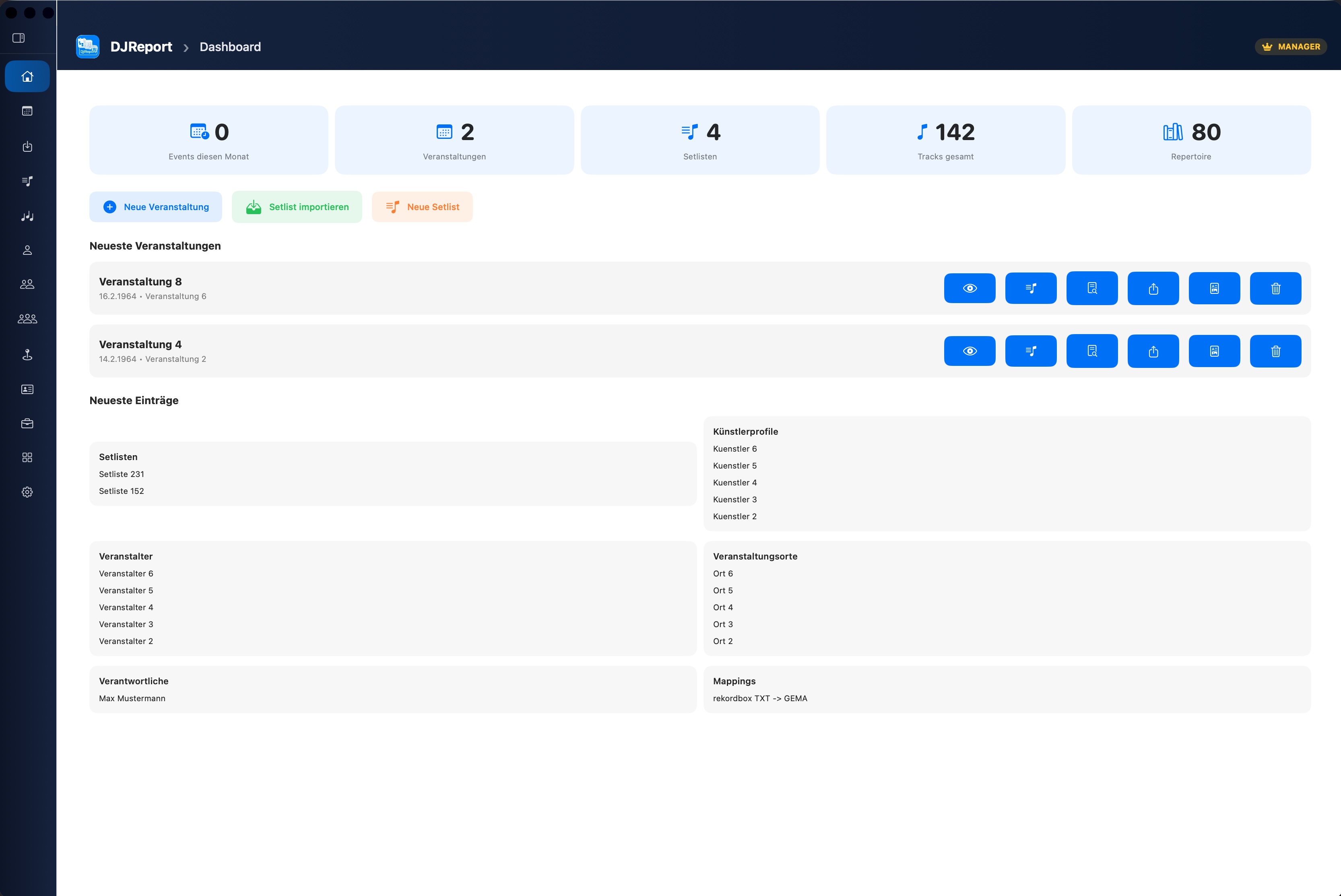
The Dashboard is your home screen. It shows you a quick overview of your data and frequently needed actions.
Statistics Cards
At the top you'll see five statistics cards: Events this month, Total events, Number of setlists, Total tracks and Repertoire (number of your repertoire titles). You always have the overview at a glance.
Quick Actions
The Quick Actions area provides direct access to common actions: Create new event, Start Serato import and Create new setlist – without having to navigate through the menu. The "New Setlist" button navigates directly to the setlist area and opens the creation dialog immediately.
Recent Events
The last 3 events are displayed with quick access to edit, export and further actions. The action buttons show a description when hovering (after about 1 second).
Event Wizard
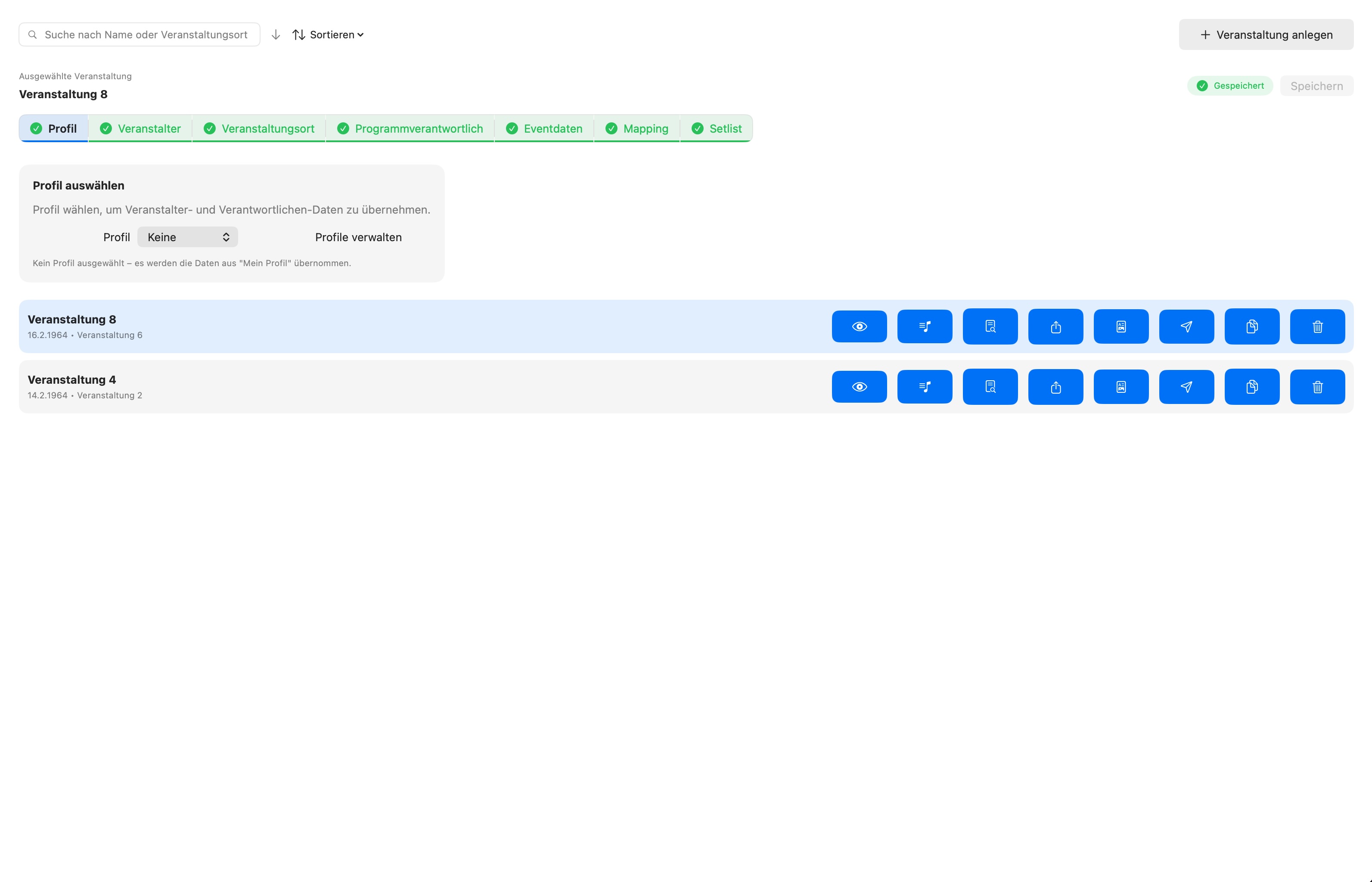
The Event Wizard is the heart of DJReport. It guides you through 7 sequential steps to capture all data for an event.
The 7 Steps
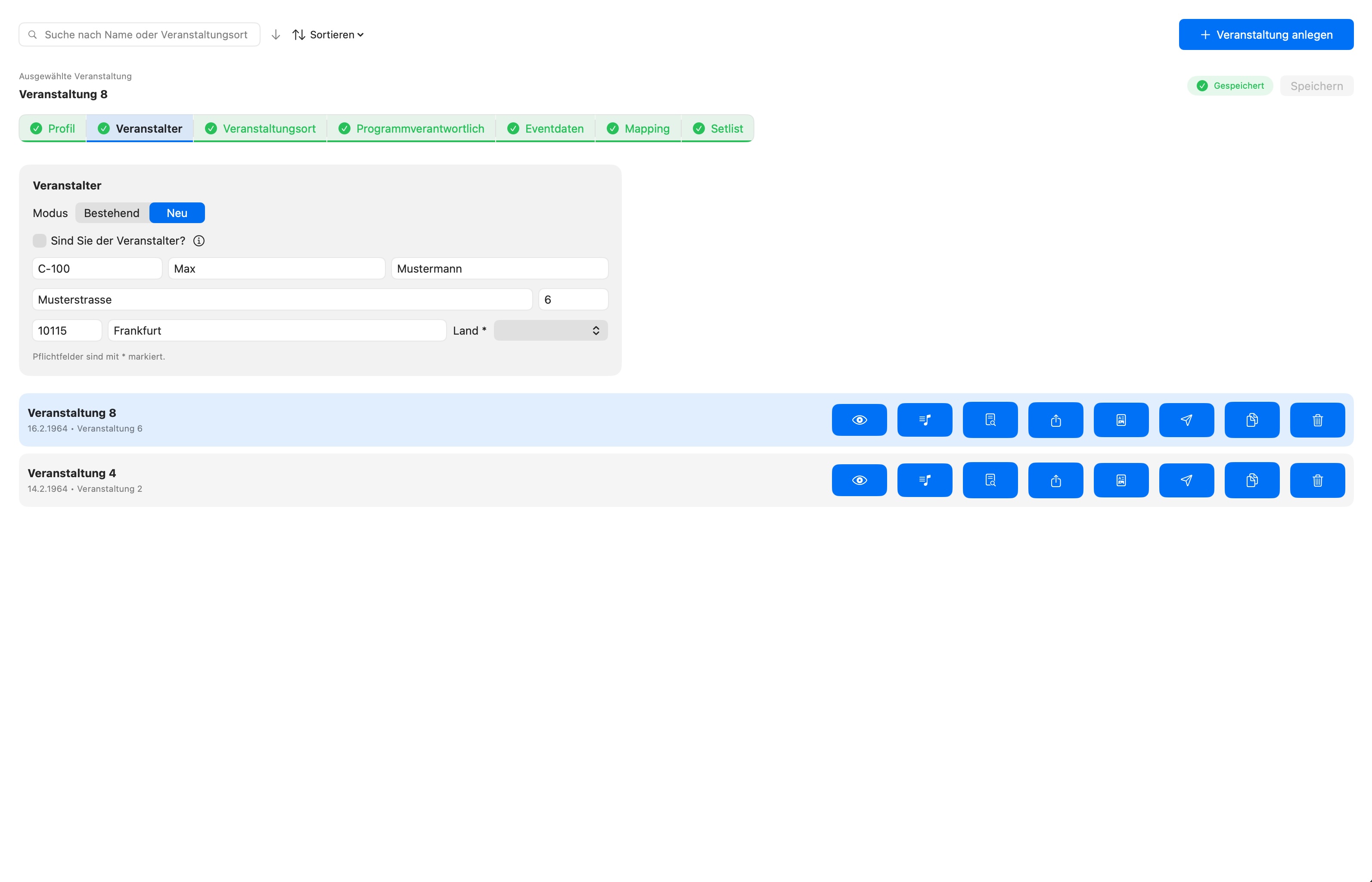
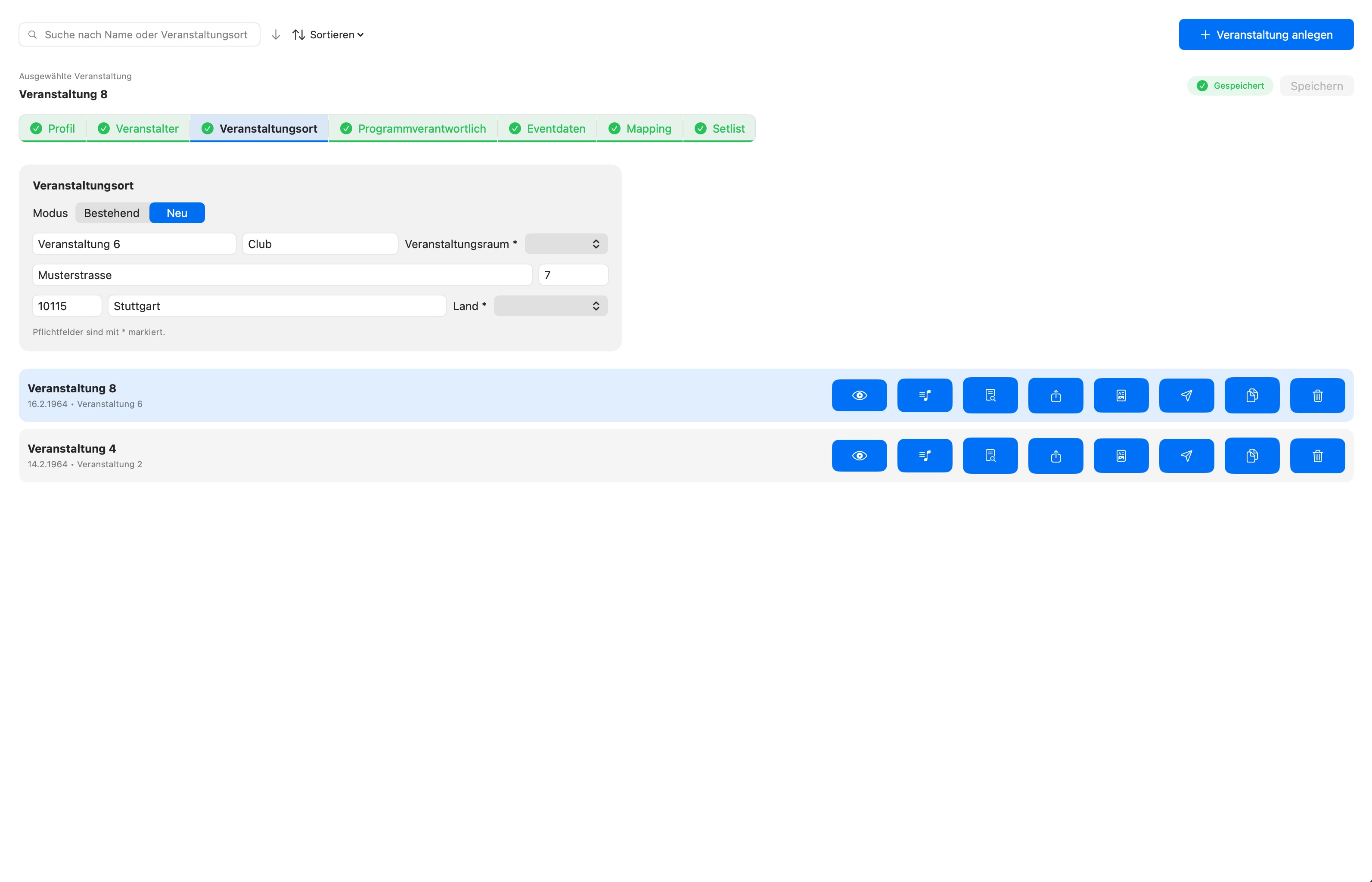
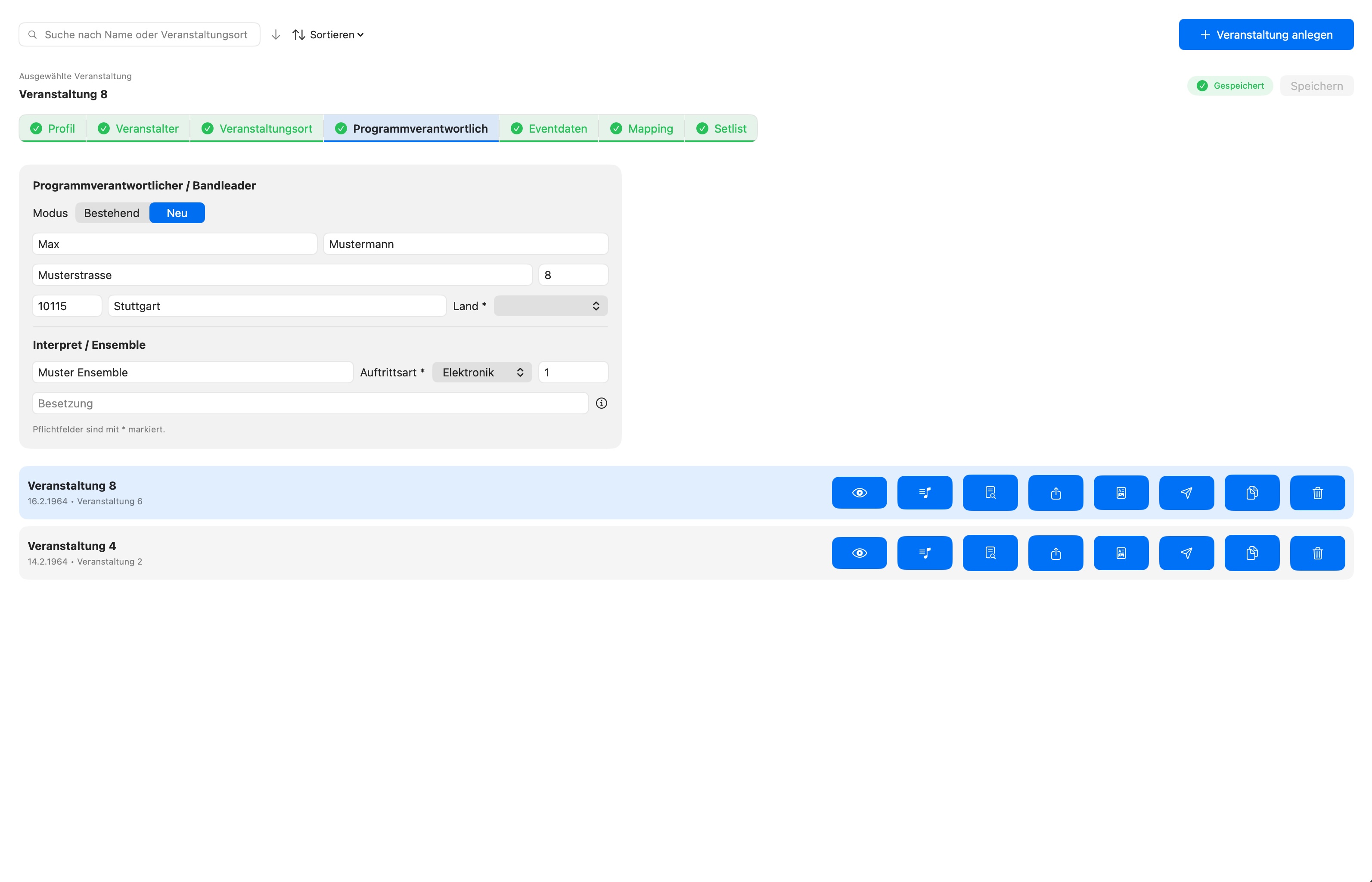
Profile – Choose your artist profile (name, GEMA number, etc.)
Organiser – Choose or create the organiser
Venue – Choose or create the venue
Programme Manager – Assign the person responsible
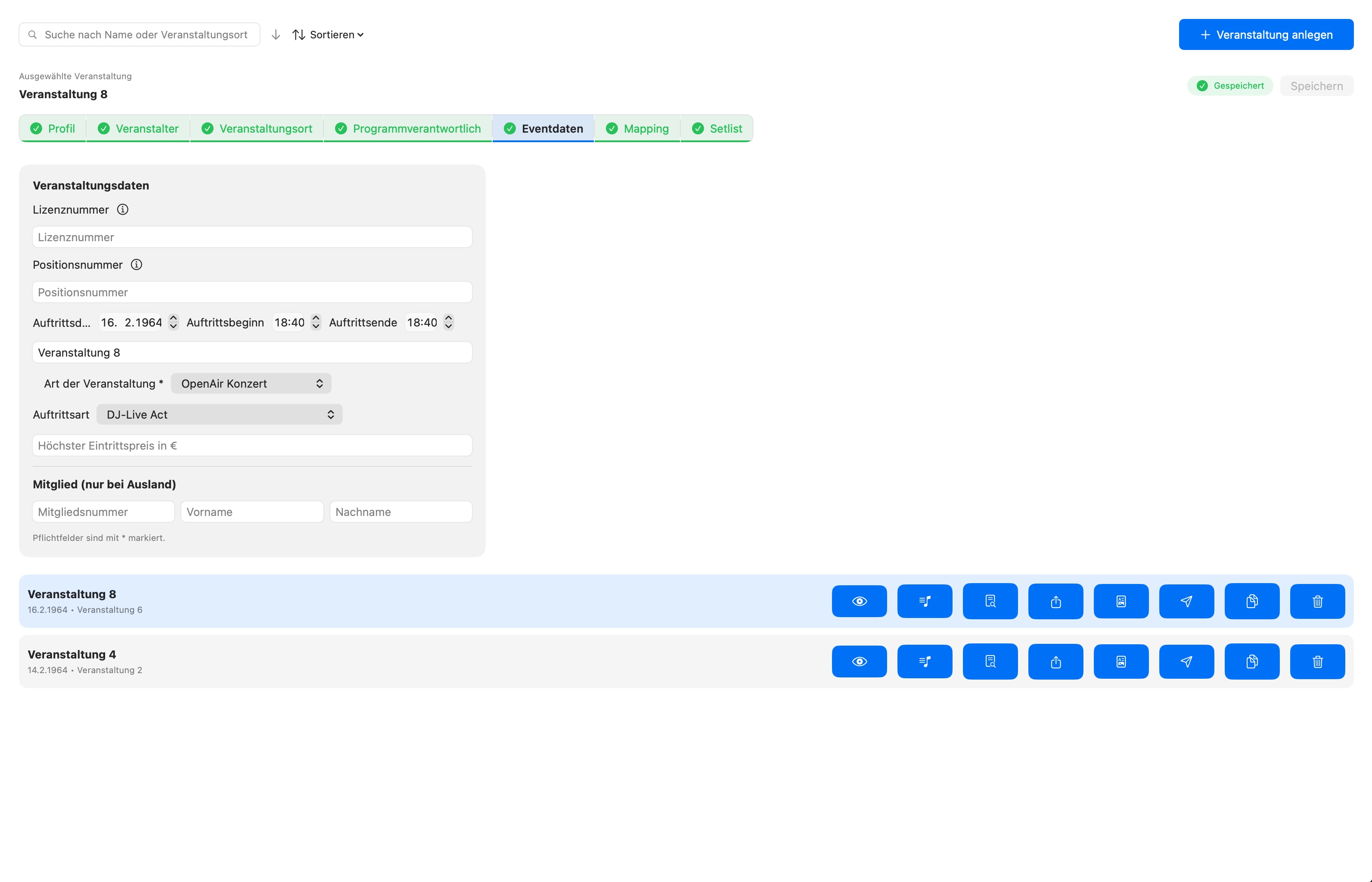
Event Data – Date, start/end time, licence number
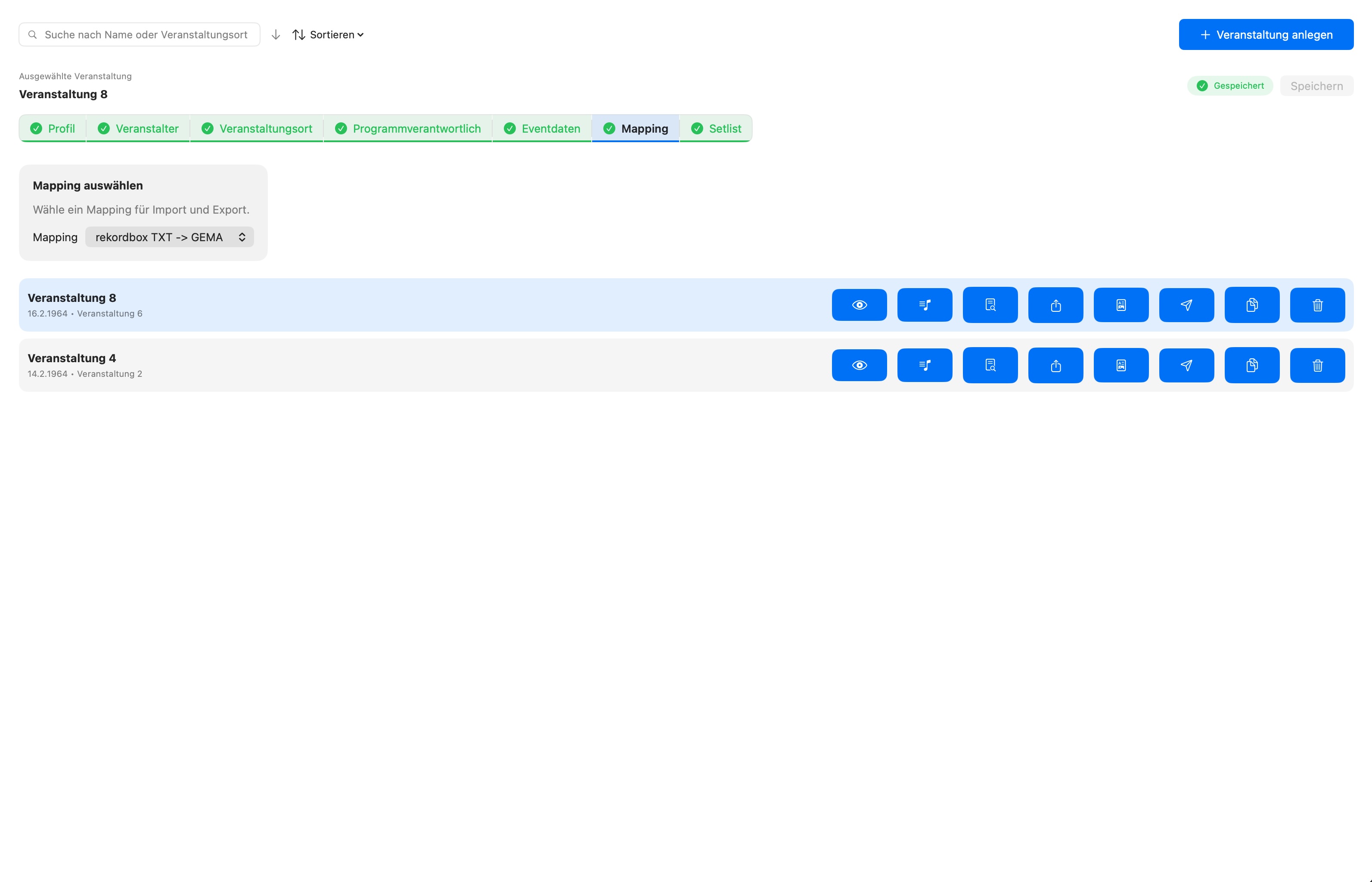
Mapping – Choose the export template
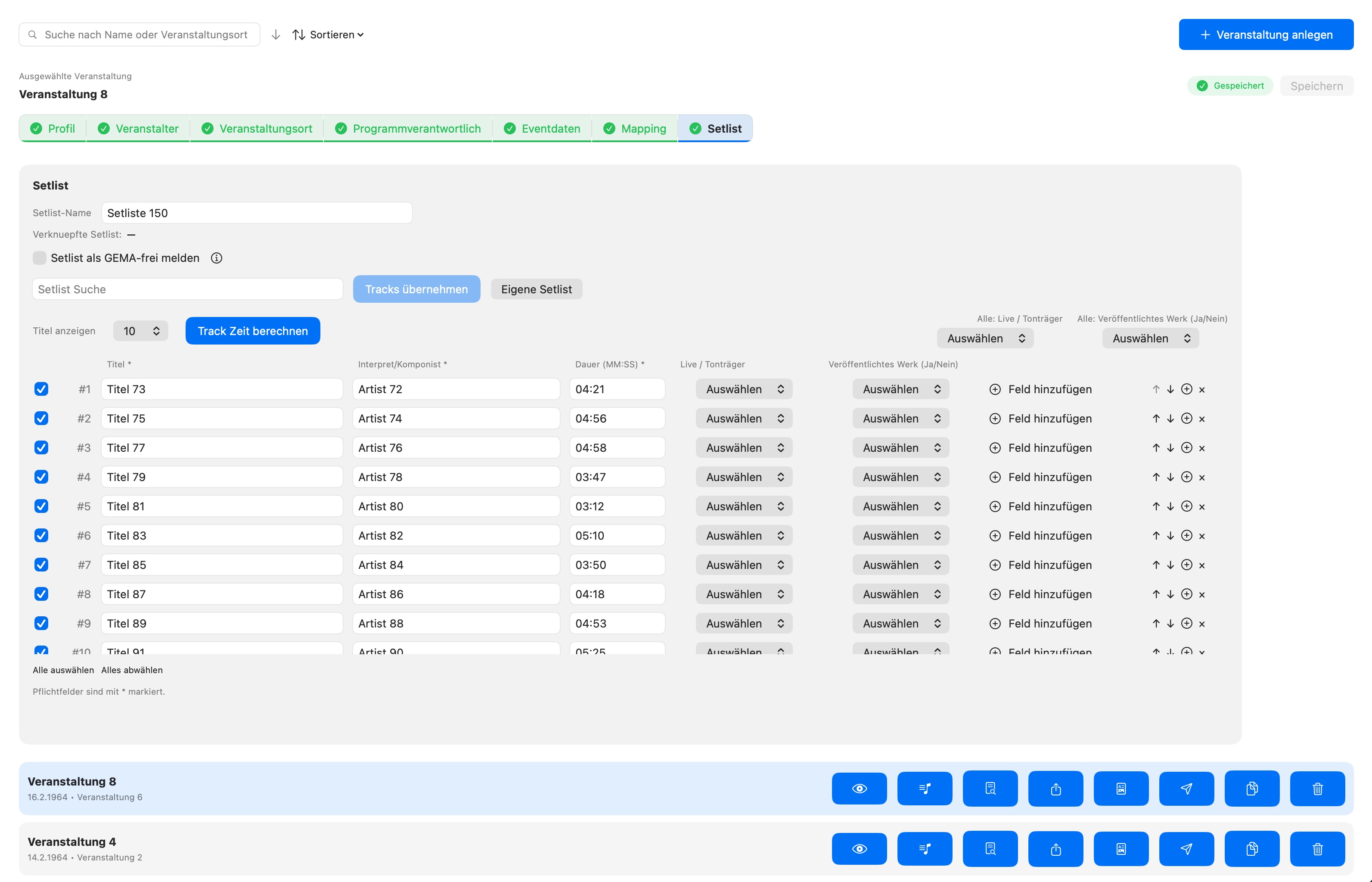
Setlist – Link a setlist to the event
Navigation in the Wizard
For a new event you always start at step 1 and can only move forward when the current step is complete. For existing events you can jump directly to any completed step.
The current step is highlighted with a blue border. A step is considered "done" when all required fields are filled in.
Event Data (Step 5)
In this step you enter the specific event details:
Event Date: The date of your performance.
Start Time / End Time: Your actual playing time. The performance duration is calculated automatically from this. If the end time is before the start time, the next day is automatically assumed (e.g. start 23:00 – end 02:00 = 3 hours).
Licence Number / Position Number: If available, enter the GEMA licence number here.
GEMA Member Data: First and last name are automatically taken from your artist profile – you don't need to enter them manually.
Event Name Suggestions: DJReport automatically suggests an event name from the venue and date (e.g. "Club XY 15.03.2026").
Duplicate Event
You can duplicate an existing event to quickly create similar events. The duplicate gets the name suffix "Copy" (or "Kopie" in German). All data is carried over.
Manage Setlists
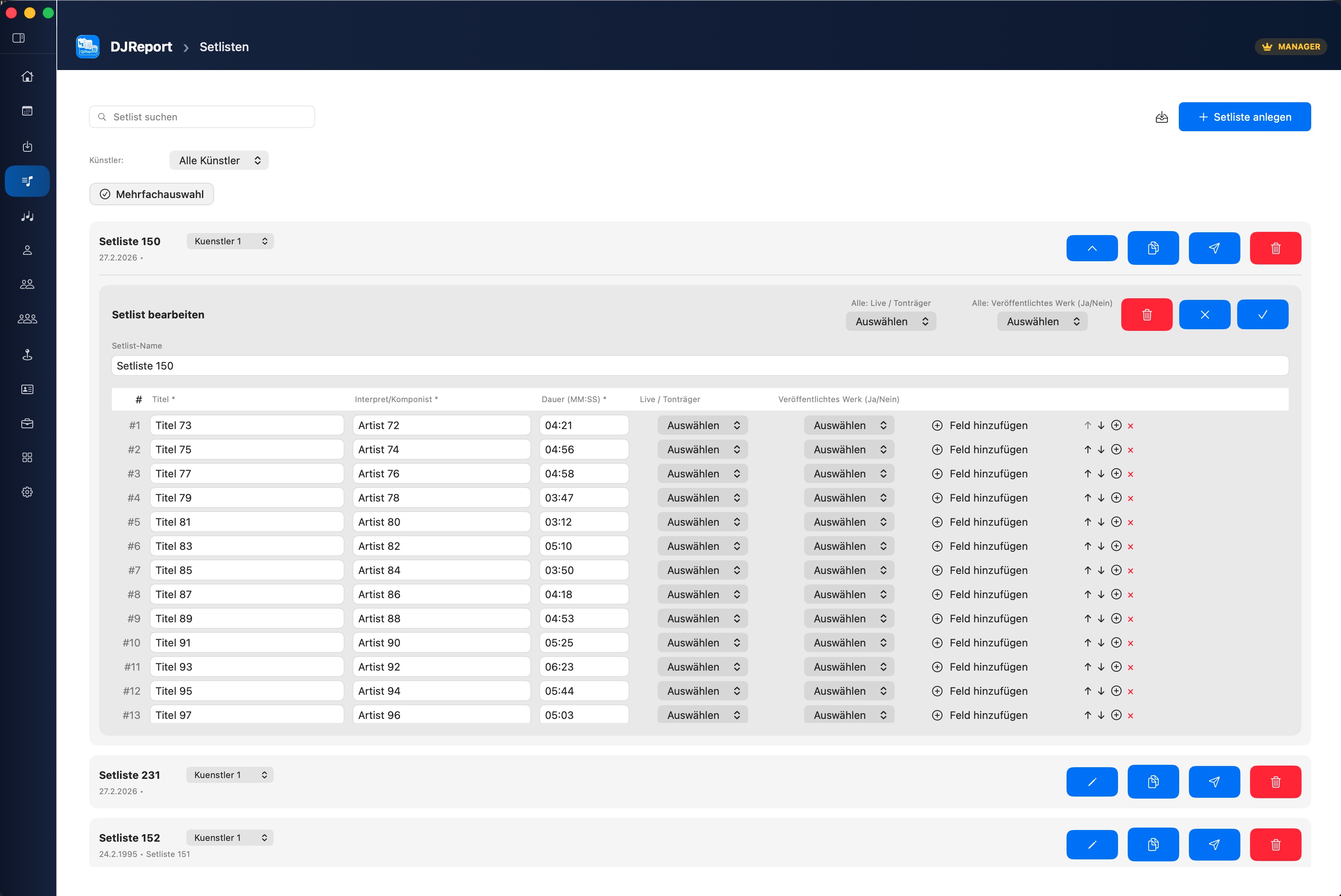
In the Setlists area you see all saved setlists. You can search them (search field top right with autocomplete) and sort them (arrows in the toolbar).
Search History
DJReport remembers your last 5 search terms per area. When you focus the search field empty (click without typing anything), a list of "Recently searched" appears – so you quickly get back to frequently used terms. This applies to setlists, organisers, venues and programme managers.
Show Tracks
The "Show titles" setting controls how many tracks are visible. The list grows to the chosen number and then becomes scrollable.
Delete Setlist
When deleting a setlist, DJReport checks whether it is linked to events and shows them in the dialog. Deleting only removes the link – the event content is preserved.
Required Fields per Track
Each track has the following required fields: Title, Artist/Composer, Duration, Live/Recording and Published Work (Yes/No). Additional optional fields (work number, publisher, ISWC, etc.) can be added per track.
Export Readiness (Ready Badge)
In the setlist overview, DJReport shows a status badge next to each setlist: a green checkmark means the setlist is complete and export-ready. An orange warning triangle indicates that tracks with missing required fields exist. Hovering over the badge shows a tooltip with the number of tracks missing a title, artist or duration.
In the track editor, tracks with missing required fields are highlighted with a red border. An orange warning banner above the track list breaks down how many fields are missing (e.g. "2 without title, 1 without artist").
Calculate Track Time
This function calculates realistic play times for each track based on your performance duration.
Click "Calculate Track Time" in the setlist view.
Enter start time and end time of your performance (hh:mm).
The performance duration is shown automatically.
Enable "Auto-adjust tracks" or click "Update".
The calculation does not create even distribution, but varies the length of each track by ±30% so the result looks natural. The total is scaled to the performance duration.
There is no time limit – the calculation works even for performances longer than 3 hours. After calculation, soft warnings may appear (orange, non-blocking):
- Set shorter than 30 minutes
- Sum of track times exceeds the set length by more than 5 minutes
Create Manual Setlist
You can also create setlists completely manually if you don't want to use an import.
Go to the Setlists menu item.
Click "New Setlist".
Give the setlist a name and add tracks.
Fill in the required fields for each track.
Drag & Drop Import
You can drag audio files directly into DJReport – from the Finder or from your DJ software (e.g. Rekordbox or Serato). DJReport automatically reads the metadata and creates tracks in the setlist.
Select one or more audio files in Finder or your DJ software.
Drag them onto the Setlists area (creates a new setlist) or onto an open setlist (appends tracks).
DJReport reads title, artist, duration and BPM from the file tags automatically.
Supported formats: MP3, AIFF, WAV, FLAC, M4A, MP4, CAF. You can also drop an entire folder – DJReport will recursively find all audio files inside.
Reorder Tracks by Drag & Drop
You can reorder tracks within a setlist by dragging them. Grab the drag handle (≡ icon on the left) and drop the track at the desired position. A blue line shows where the track will be inserted.
Drag & Drop reordering is available in the setlist editor, manual setlist editor, and in Event Wizard step 7.
Clean Up Tracks
The "Clean Up Tracks" button (scissors icon) in the setlist toolbar detects combined artist/title entries and suggests how to split them correctly.
Example: If your DJ software exports "Artist – Title" as a single title field, DJReport recognises this pattern and suggests separating the values into the correct fields.
Open a setlist and click the scissors icon in the toolbar.
DJReport shows a preview of all detected tracks with a confidence rating.
Select which suggestions to apply and confirm.
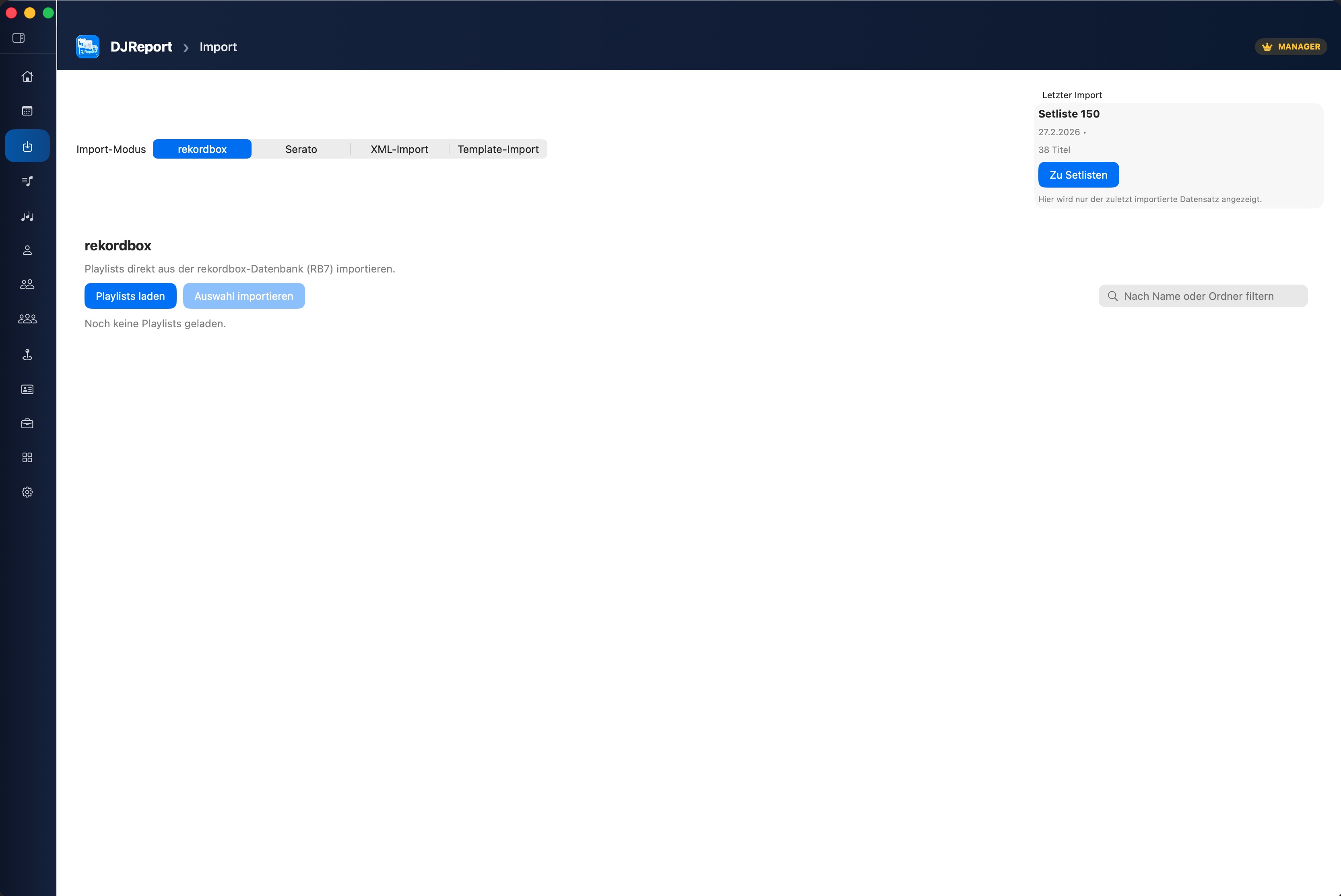
Rekordbox Import
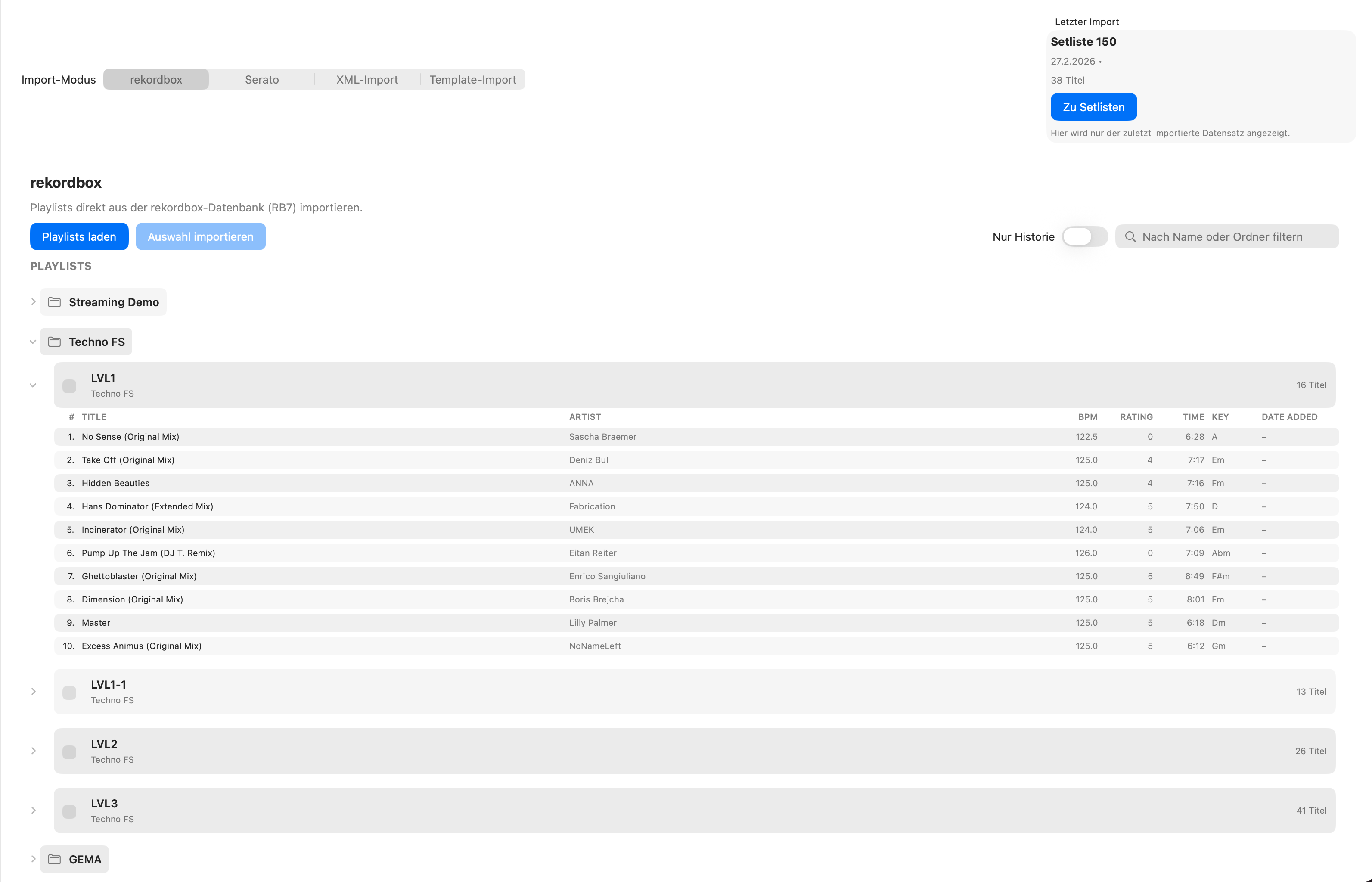
DJReport can import directly from the local Rekordbox database on your Mac – without you needing to export anything.
Go to the Import area and select Rekordbox.
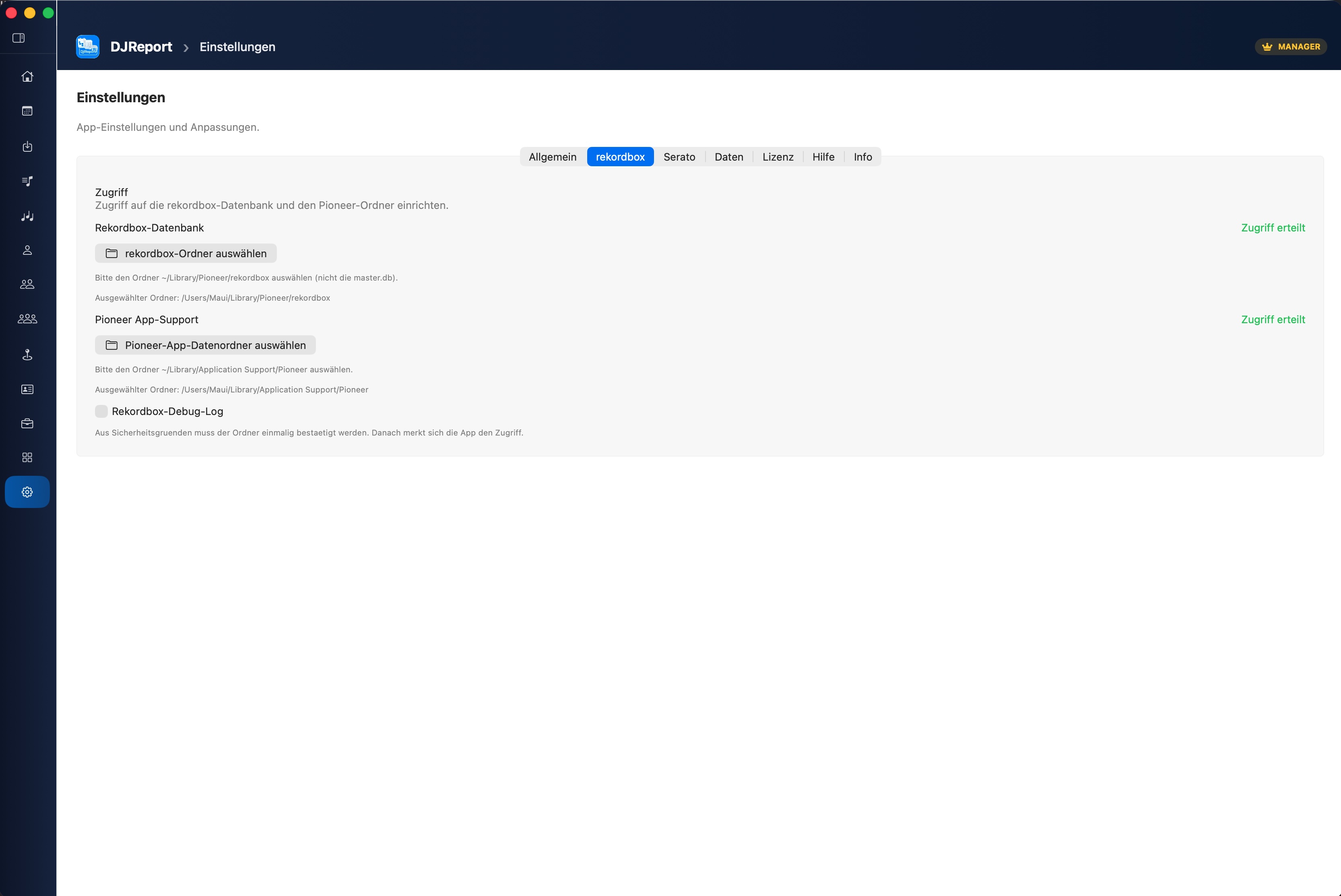
DJReport automatically searches for the Rekordbox database.
Select Playlists or History (played sets).
Select the desired tracks and click "Import".
Imported data includes: Title, artist, BPM, duration, key and further metadata.
Rekordbox Sync
With Rekordbox Sync you can write corrected track data (title, artist) directly back to your Rekordbox database. This way your corrections are not only stored in DJReport but also applied in Rekordbox.
Open a setlist that contains Rekordbox tracks.
Click the "Rekordbox Sync" button in the setlist toolbar.
A preview opens showing the current Rekordbox value next to the proposed correction.
Use the checkboxes to select which corrections should be applied.
Click "Write Now" to write the selected corrections to the Rekordbox database.
Automatic Backup
Before each write operation, DJReport automatically creates a backup of your Rekordbox database. The backup is saved as:
- File name:
master.db.djreport_backup - Location:
~/Library/Pioneer/rekordbox/(in the same folder as the original database)
Restoring the Rekordbox Database
If you experience issues in Rekordbox after a sync, you can restore the database using the backup:
Quit Rekordbox completely. Make sure Rekordbox is not running (not even in the background).
Open Finder and navigate to the Rekordbox database folder. Press ⌘ + Shift + G (Go to Folder) and enter: ~/Library/Pioneer/rekordbox/
Rename the current database: master.db → master.db.broken (as a safety copy).
Rename the backup: master.db.djreport_backup → master.db
Restart Rekordbox. Rekordbox will now use the restored database.
master.db. Your music files (MP3, FLAC, WAV etc.) are not modified.Serato Import
Serato import works similarly to Rekordbox and reads directly from the Serato folder on your Mac.
Go to the Import area and select Serato.
Click "Load Crates" to show your Serato crates.
Select crates or use History Import for played sessions.
Select the desired tracks and click "Import".
Imported data includes: Title, artist, BPM, duration. The Serato import supports both text and binary session formats automatically.
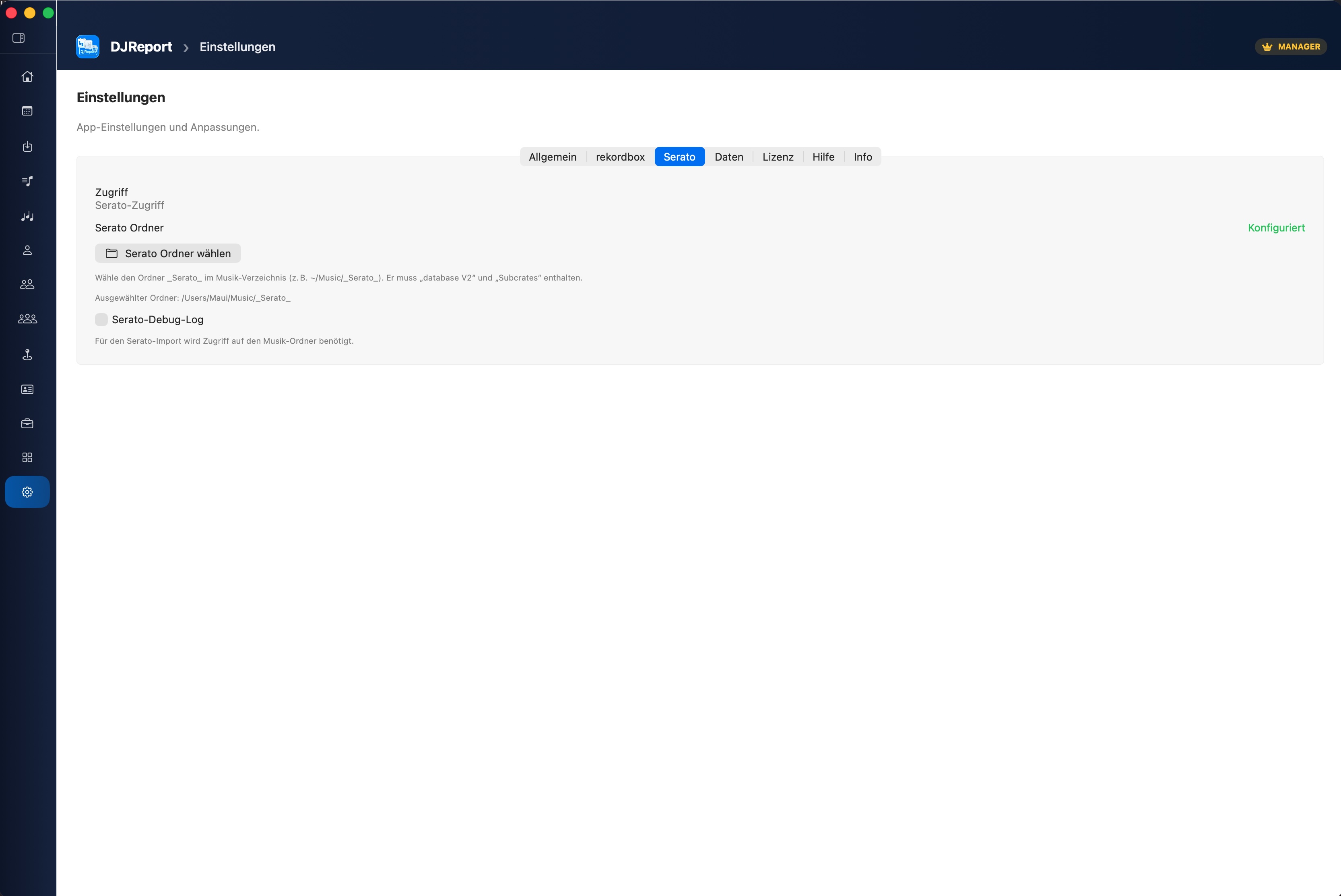
Source folder: DJReport automatically searches under ~/Music/_Serato_ and alternative paths. Import controls are only shown when a valid Serato path is configured – otherwise a warning is displayed.
Repertoire matching: When importing from Serato, tracks are automatically matched against your repertoire. Work numbers, ISWC codes and contributors are filled in on a match.
Serato Diagnostics
In the Serato settings there is a diagnostics button that opens a detailed report: the detected Serato folder, available crates and any configuration issues are listed there. Useful when experiencing connection problems or when crates cannot be found.
CSV / TXT / M3U Import
For all other sources, DJReport offers a flexible import wizard with configurable column mapping.
Go to the Import area and select your file.
DJReport automatically detects headers and delimiters.
Map the columns to DJReport fields (title, artist, duration, etc.).
Save the mapping as a template for future imports.
Click "Import".
Duplicate Detection During Import
When importing tracks (from Rekordbox, Serato or CSV), DJReport automatically checks whether tracks with the same title and artist already exist in the target setlist.
If duplicates are found, a dialog appears with the count and a list of affected tracks. You then choose how DJReport should handle them:
Import all – All tracks are added, even if they already exist.
Skip duplicates – Only new tracks are imported; existing ones remain unchanged.
Replace duplicates – Existing tracks are updated with the newly imported data.
After import, DJReport shows a summary: number of imported, new and skipped tracks.
Repertoire
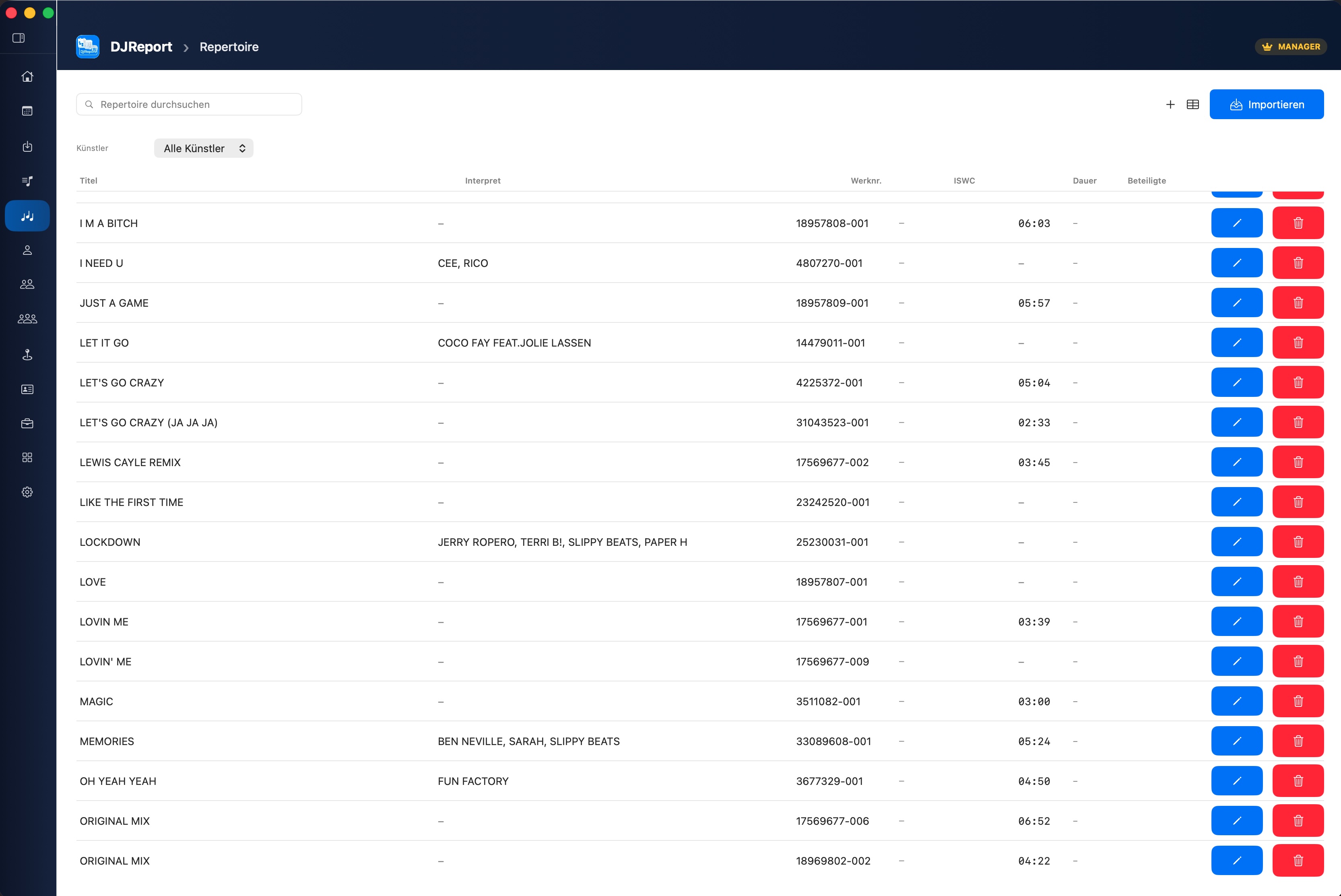
The Repertoire section lets you manage your entire musical works centrally in DJReport. When importing setlists, the app automatically matches tracks against your repertoire and applies work numbers, ISWC, composers and publishers – no manual follow-up needed.
Importing Repertoire
Export your repertoire directly from the GEMA portal and import the file into DJReport:
GEMA XLSX
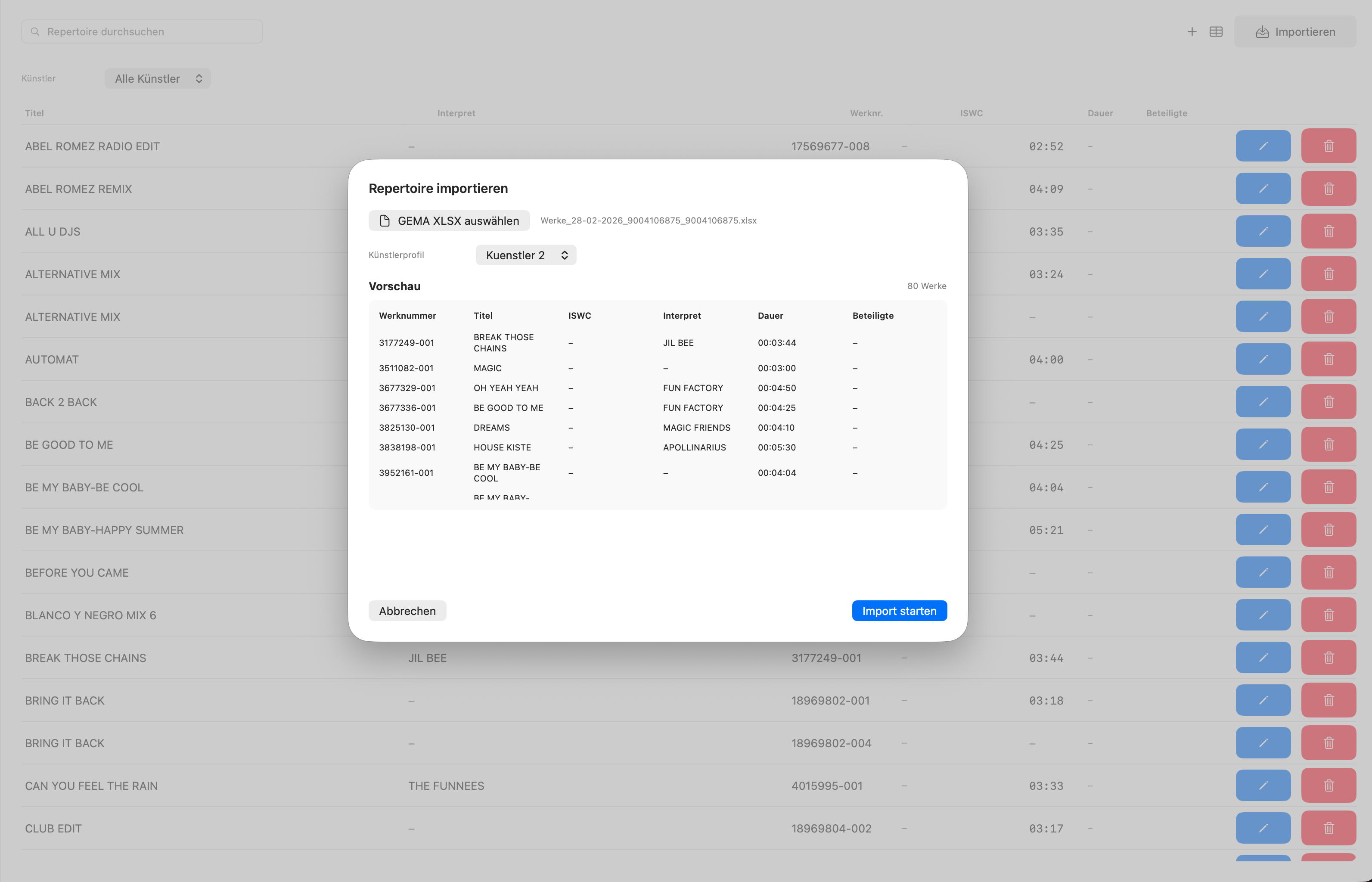
Export your repertoire from the GEMA portal as an XLSX file and import it directly into DJReport. All relevant fields (work number, ISWC, contributors, shares) are read in automatically.
In the Repertoire section tap "Import".
Select "GEMA XLSX" and open the file from the GEMA portal.
A preview shows the recognised works – confirm the import.
Duplicate Detection for Repertoire Import
On re-import, DJReport checks for duplicates (priority: work number → ISWC → title + artist) and offers four options:
Import all – Creates new entries even if they already exist.
Skip duplicates – Only new works are added.
Replace duplicates – Existing entries are completely overwritten.
Merge – Existing data is kept, missing fields are supplemented.
Matching & Autocomplete
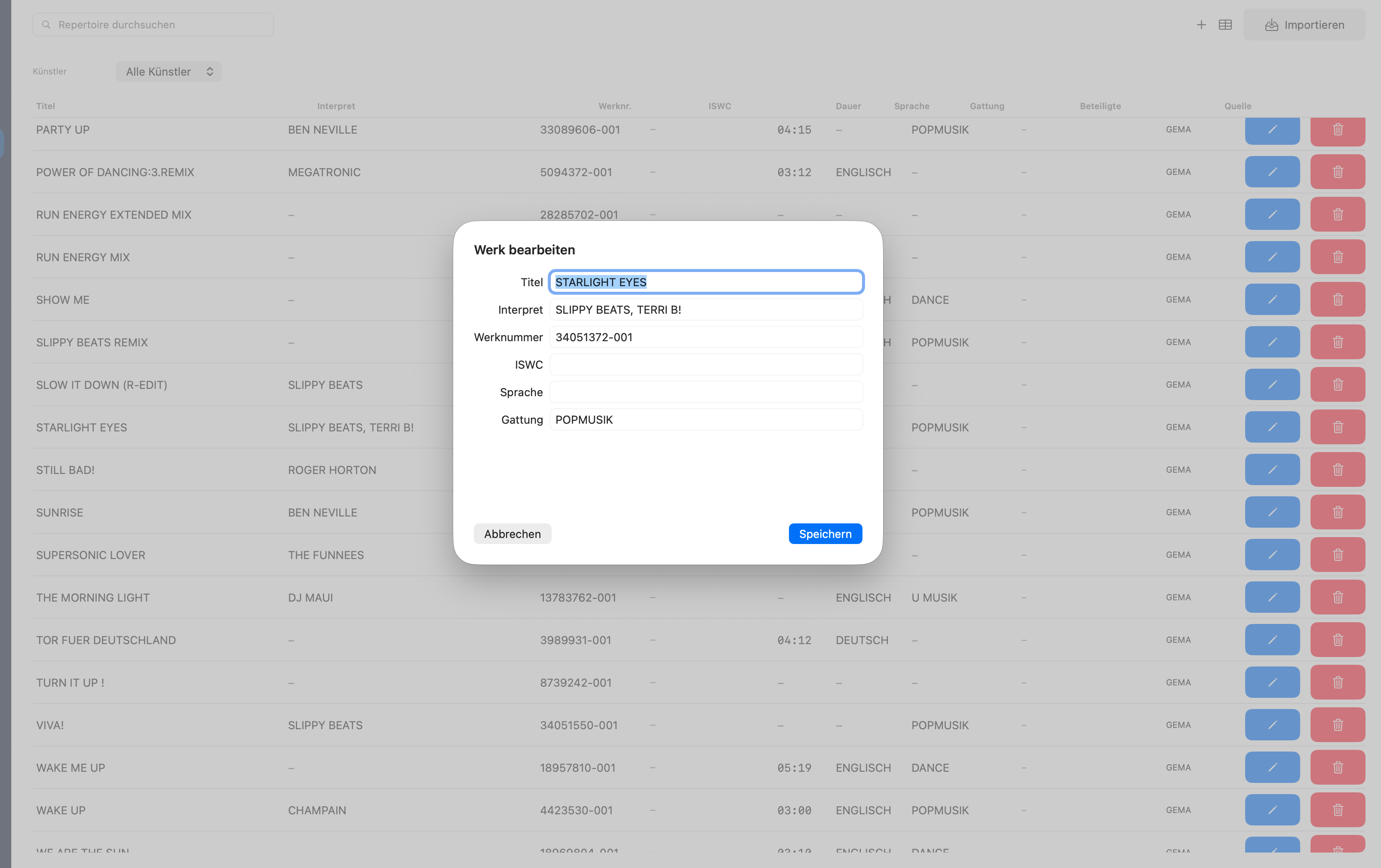
When importing setlists (Rekordbox, Serato, CSV), DJReport automatically compares each track against your repertoire. With sufficient similarity, work number, ISWC, composer, lyricist, arranger and publisher are applied directly.
Scoring: Title × 0.6 + artist × 0.25 (when artist field exists in repertoire) or title × 0.8 (without artist). Matches from 65% are applied. ISWC match and identical duration give bonus points.
Autocomplete is available in all three track editors: manual setlist, setlist editor and Event Wizard step 7. While typing a title, DJReport suggests matching repertoire entries. Selecting one instantly fills all fields: artist, work number, ISWC, composers, lyricists, publishers and arrangers.
Export – GEMA & Custom Templates
DJReport offers two export routes: the built-in GEMA template and fully custom export templates based on any XLSX files.
GEMA Export (XLSX & PDF)
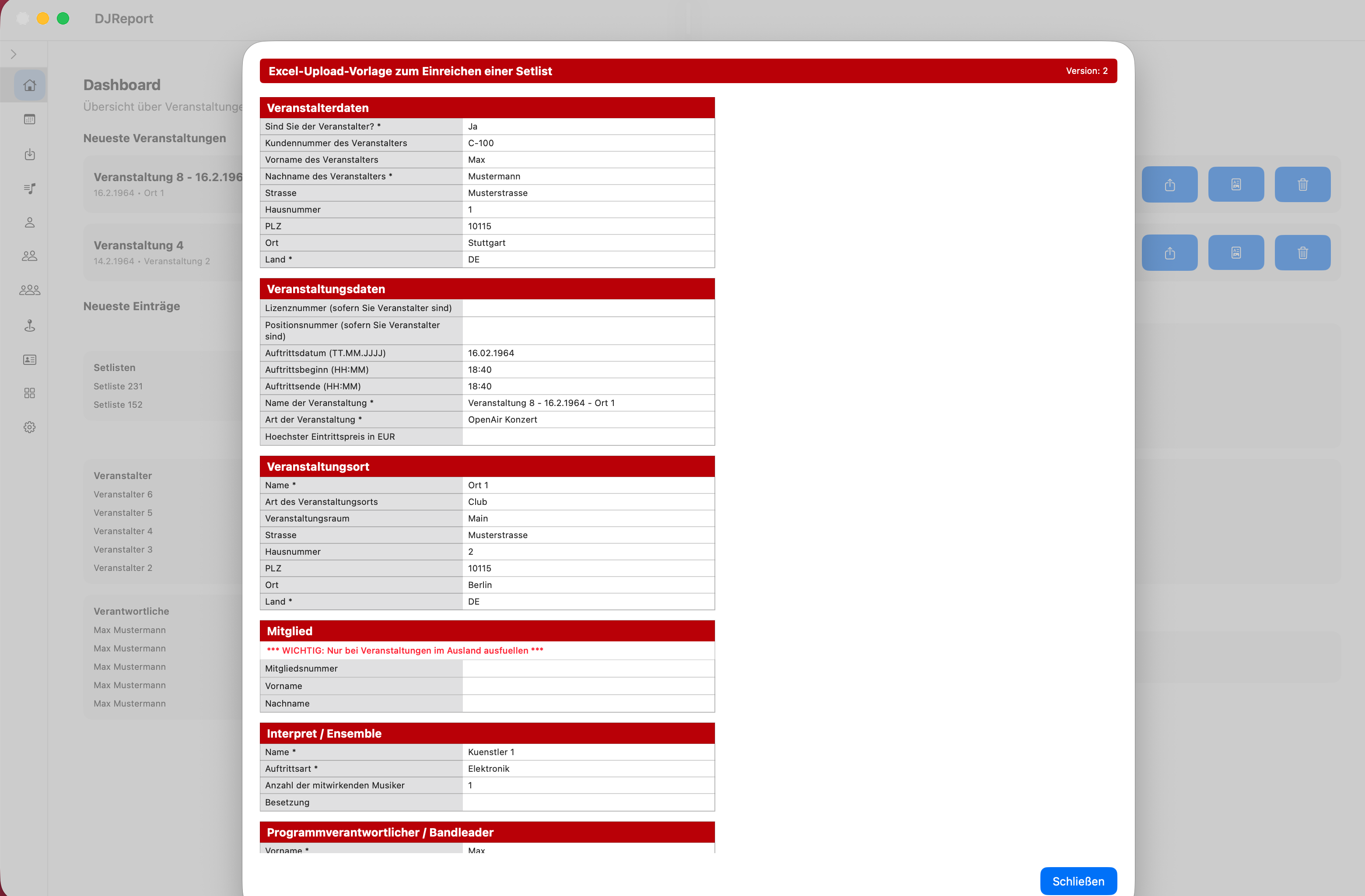
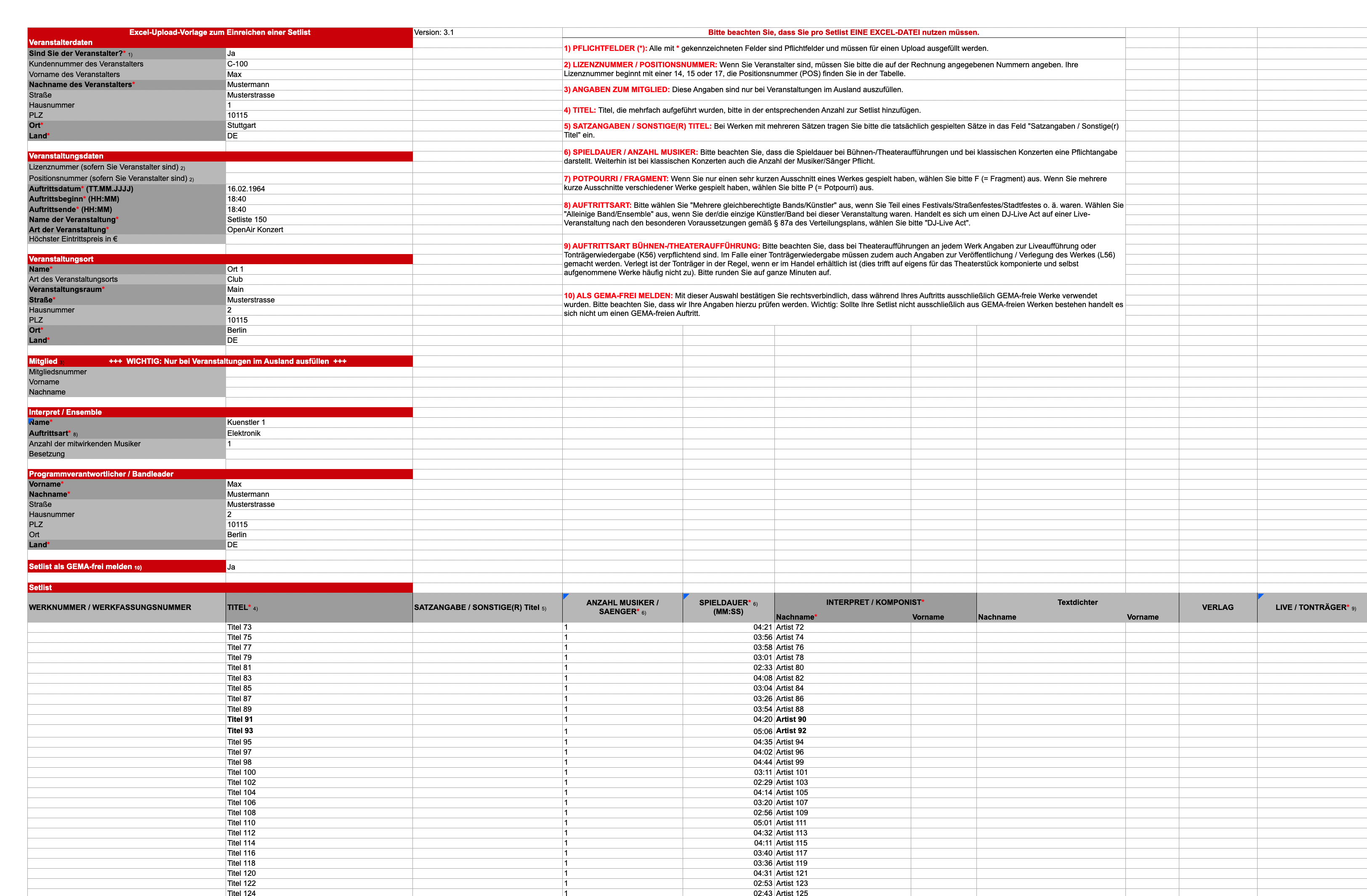
The official GEMA music programme list is built directly into DJReport. All required fields are automatically filled and correctly mapped.
Open a completed event (all wizard steps done).
Click the Export button – choose XLSX or PDF.
Choose the save location on your Mac.
Filename: DJReport_[EventName]_[Date].xlsx or .pdf
Custom XLSX as Export Template (ArtistSYNC + Export)
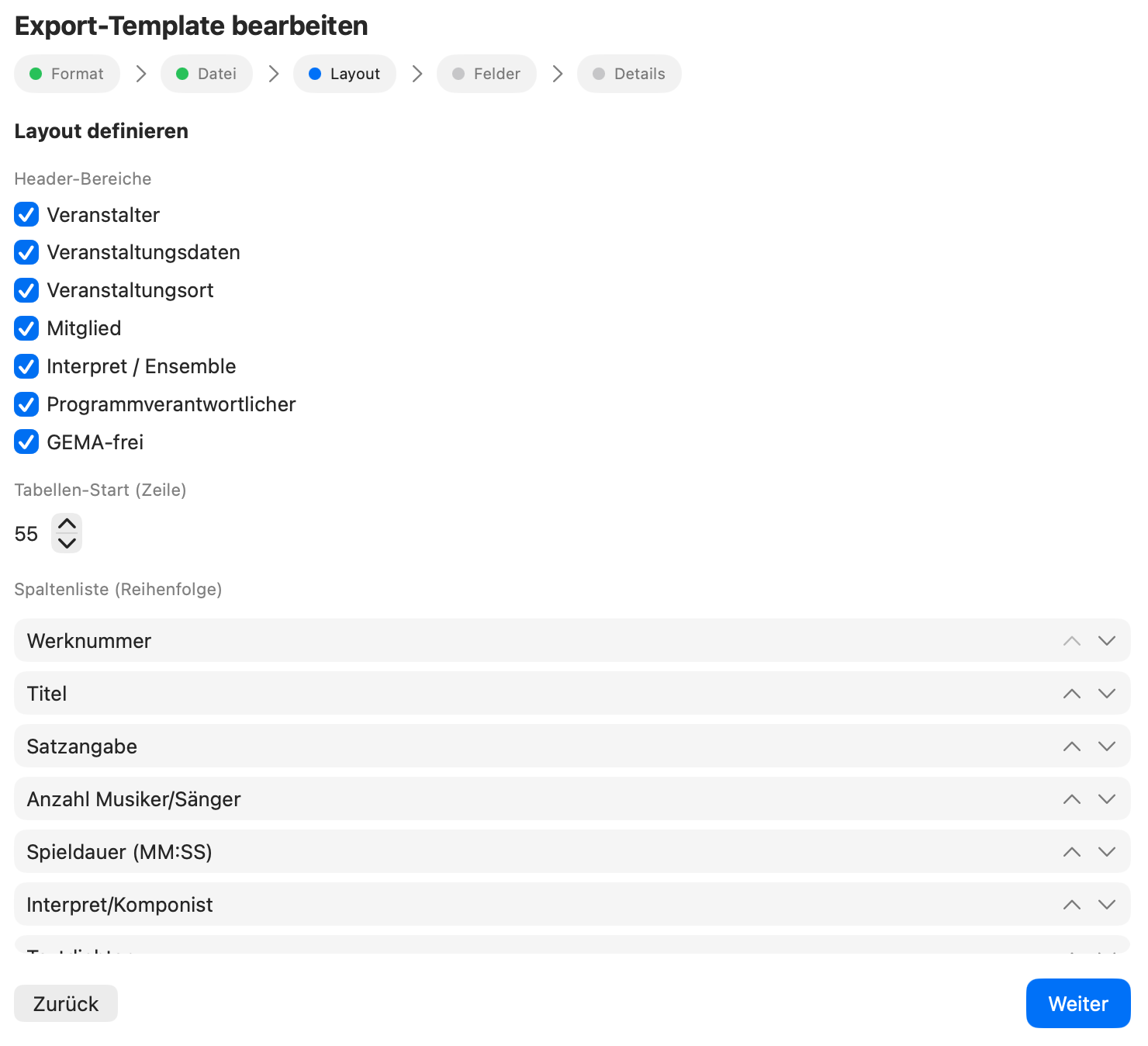
Got your own template – for example from an organiser, authority or self-created? No problem: DJReport can import any XLSX file as an export template and automatically analyses the structure, headers and fields.
You then map once which setlist data goes into which column. On the next export, the file is created in the exact same layout and design of your template – formatting, colours and structure are preserved.
Go to Templates and select "Add Export Template".
Import your XLSX file as a template – DJReport analyses headers and fields automatically.
In the mapping, assign which DJReport fields go into which columns of your template.
Save the template. It is now available in the wizard at Step 6 – Mapping.
Export – the output file follows exactly the design of your template.
Export Preview
Before exporting, you can display a preview of the finished report. The preview shows you exactly what the file will look like and takes into account the selected mapping and template.
The preview is also visible in the Free version – so you can fully test the app before subscribing.
Artist Profiles
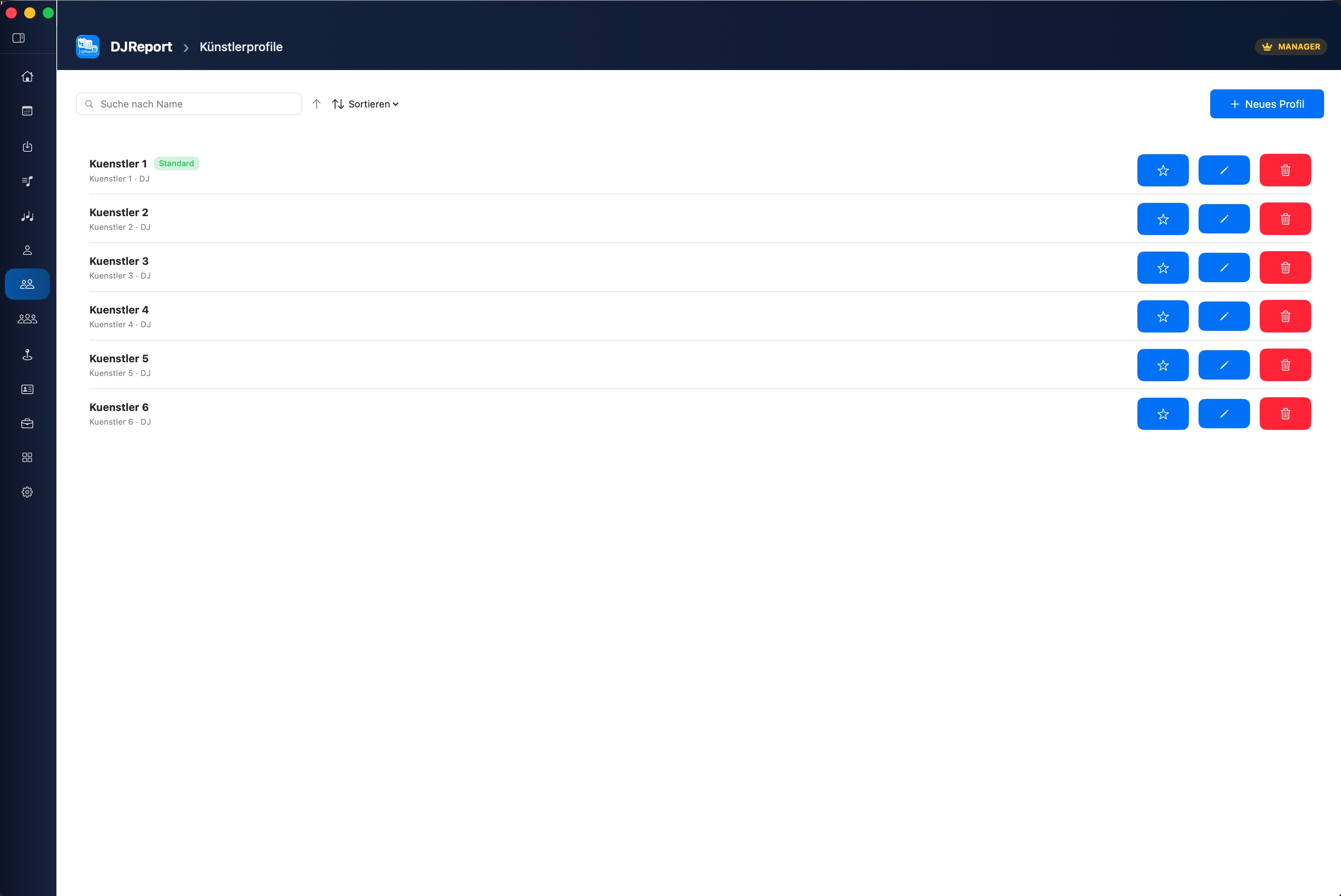
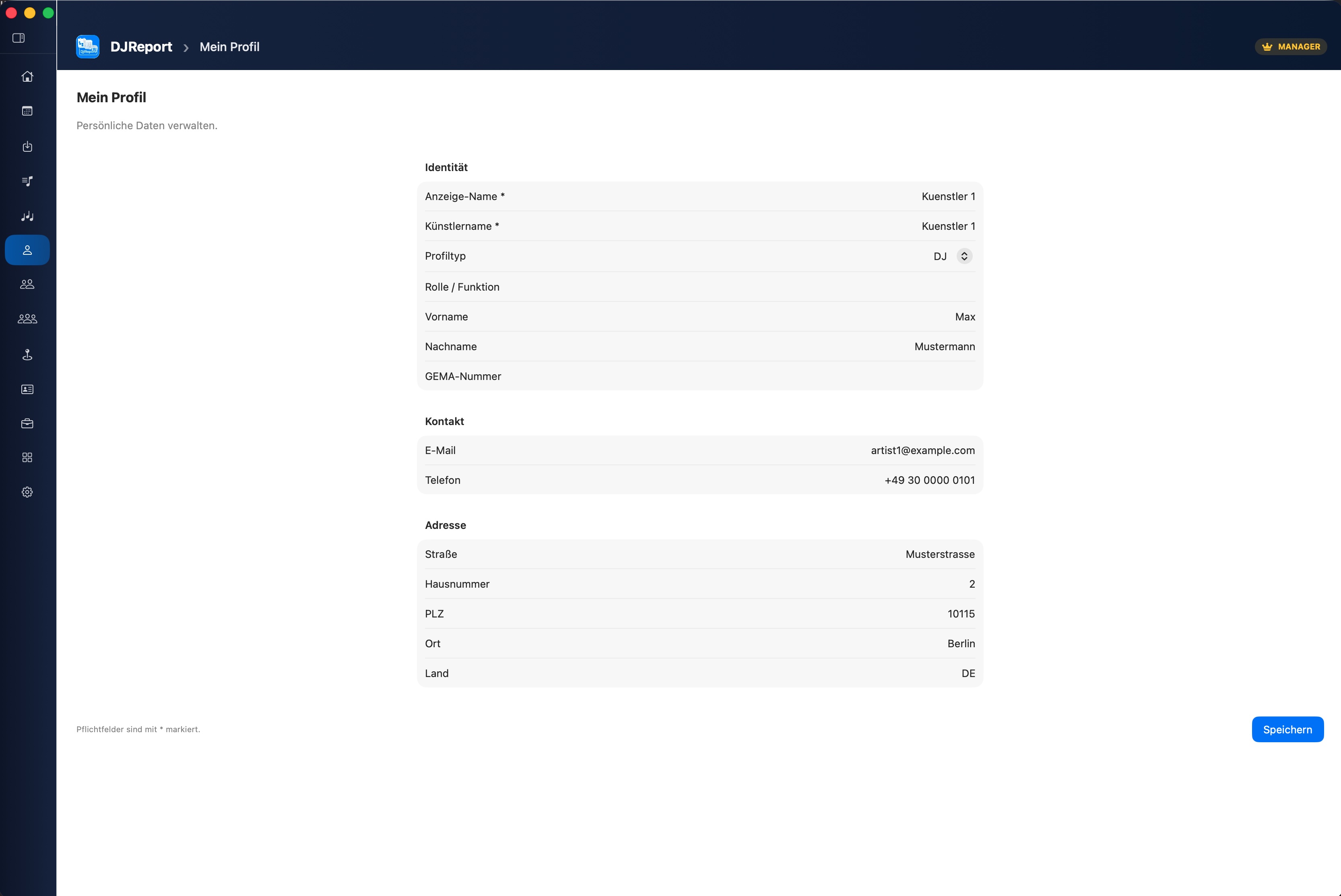
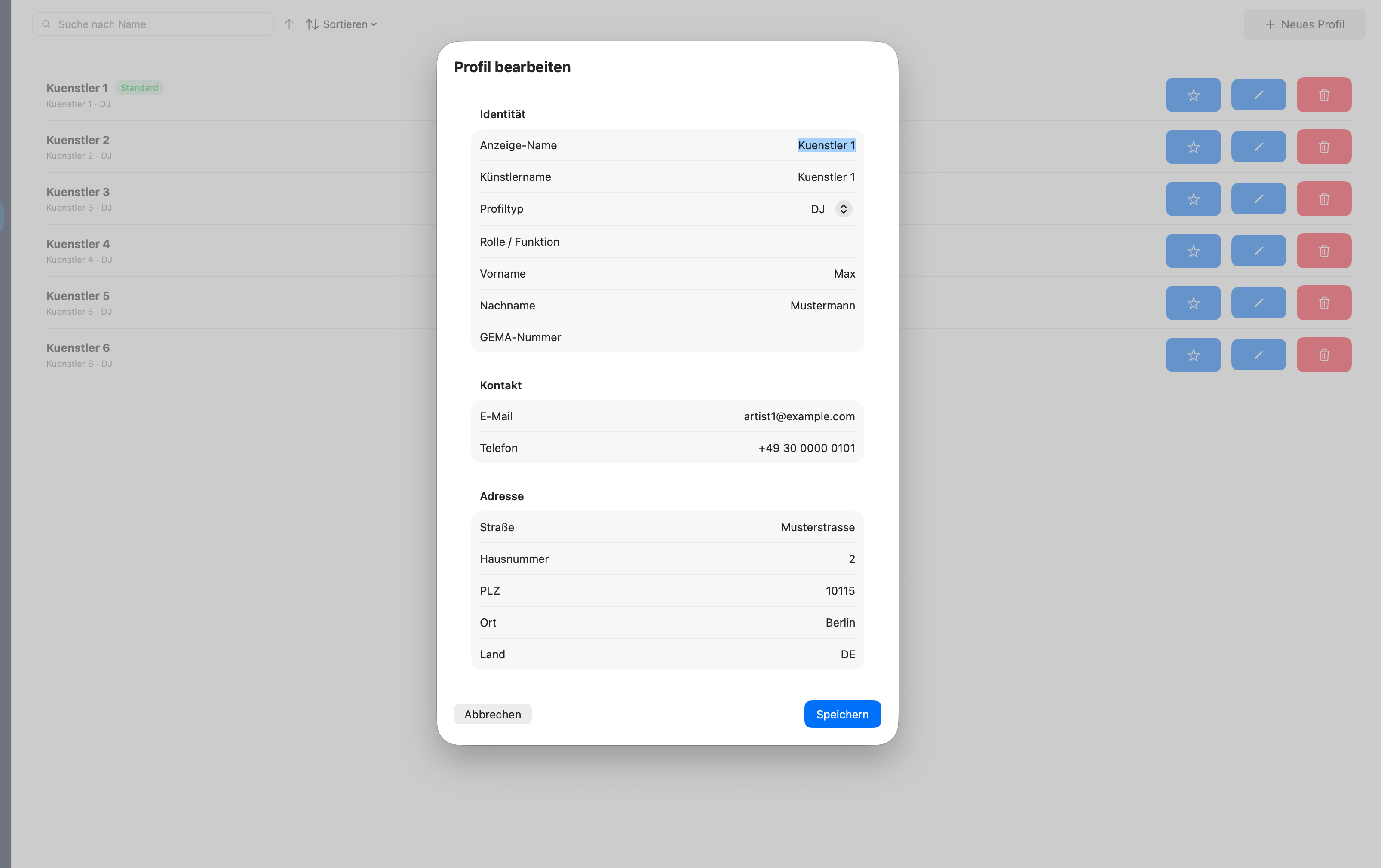
Under Profile / Artist Profiles you manage your personal data for the GEMA report. You can create multiple profiles, e.g. for different DJ aliases or projects.
Each profile contains your artist name, real name, GEMA membership number and contact details. In the event wizard you then simply select the appropriate profile.
Required fields are indicated with a red marker.
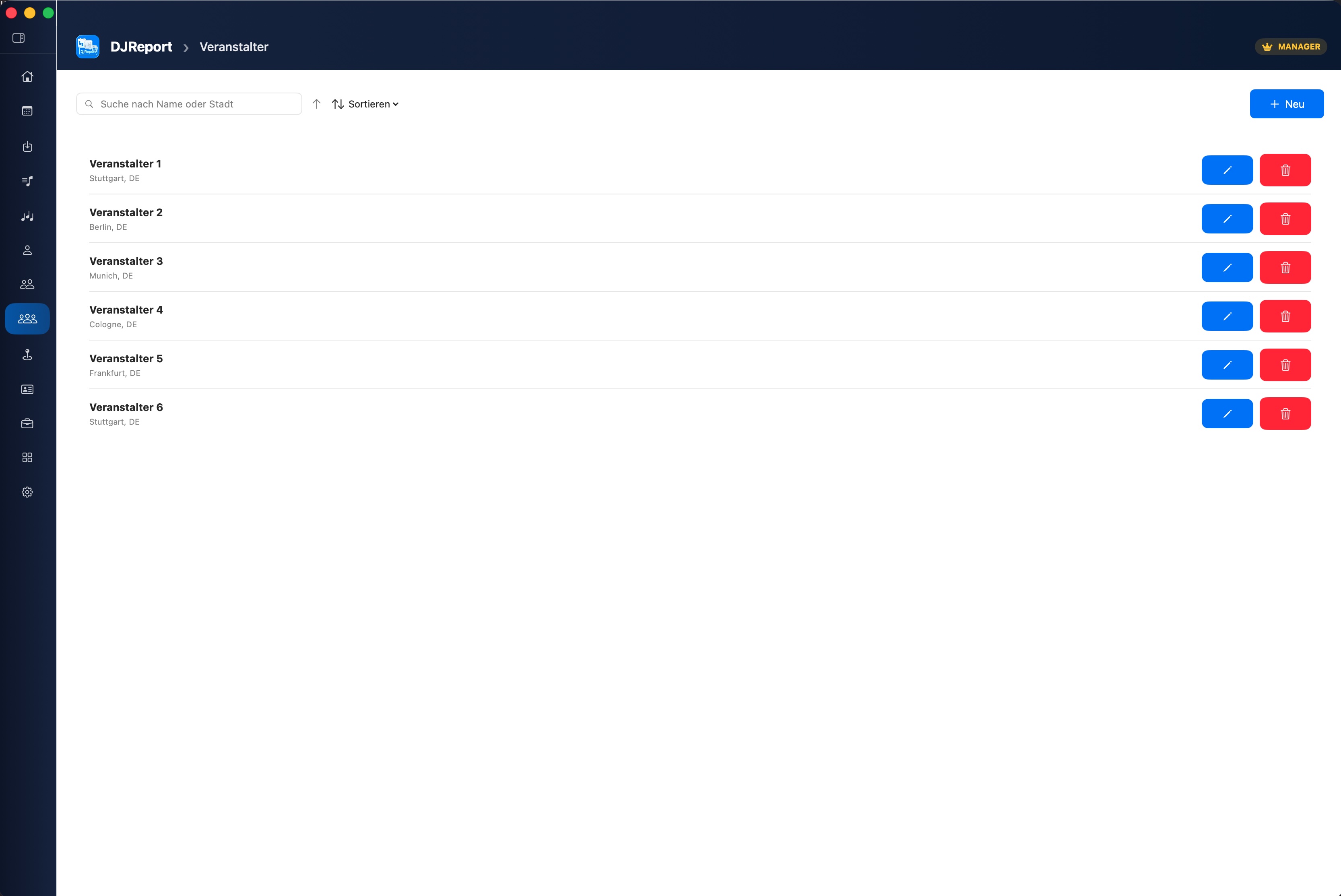
Organisers
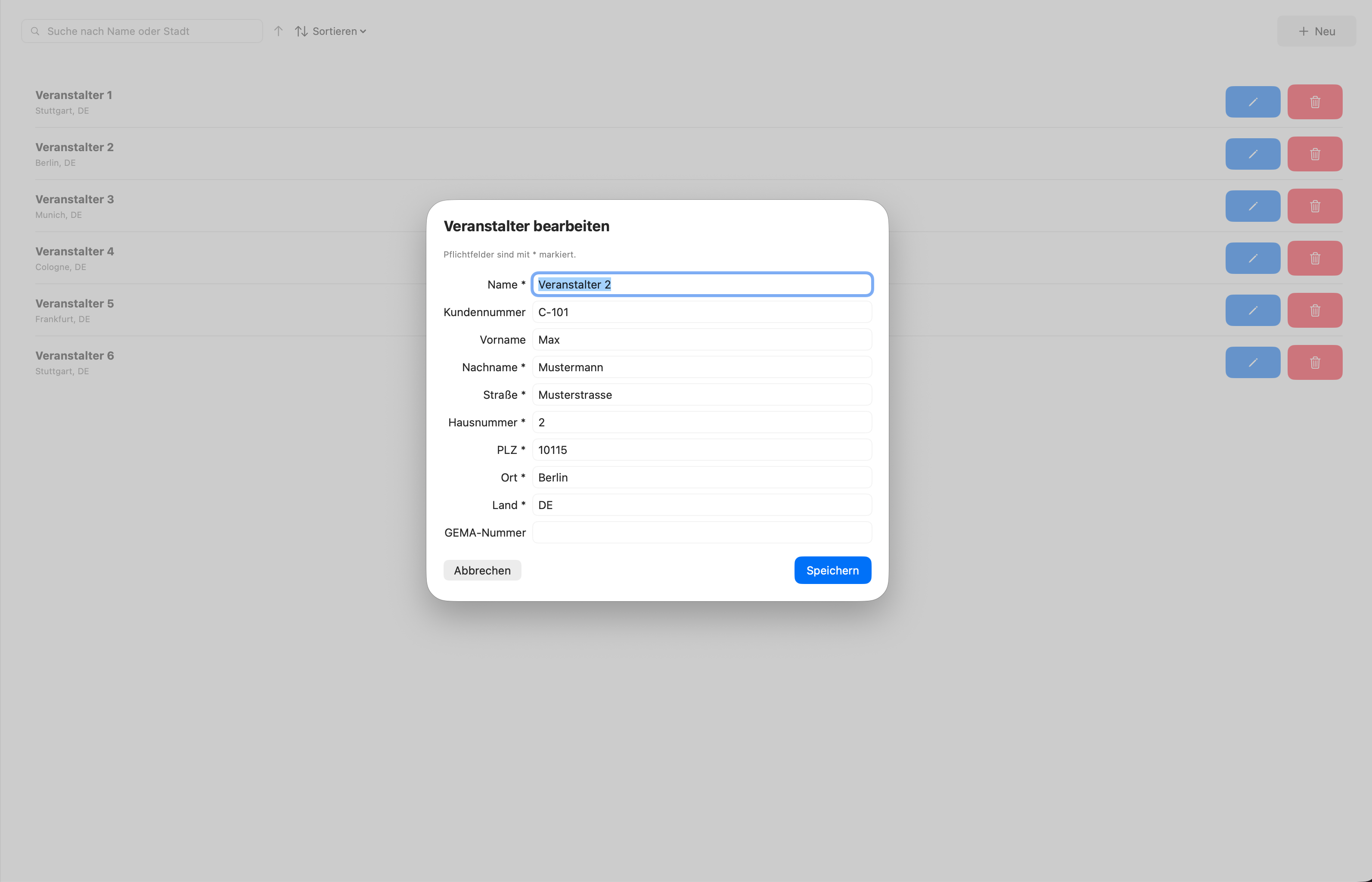
Here you manage the data of organisers (clubs, agencies, festivals, etc.). Once created, you can reuse them in every new event.
The search with autocomplete helps you quickly find the right entry. Sorting (ascending/descending) is possible via the arrows in the toolbar.
Venues
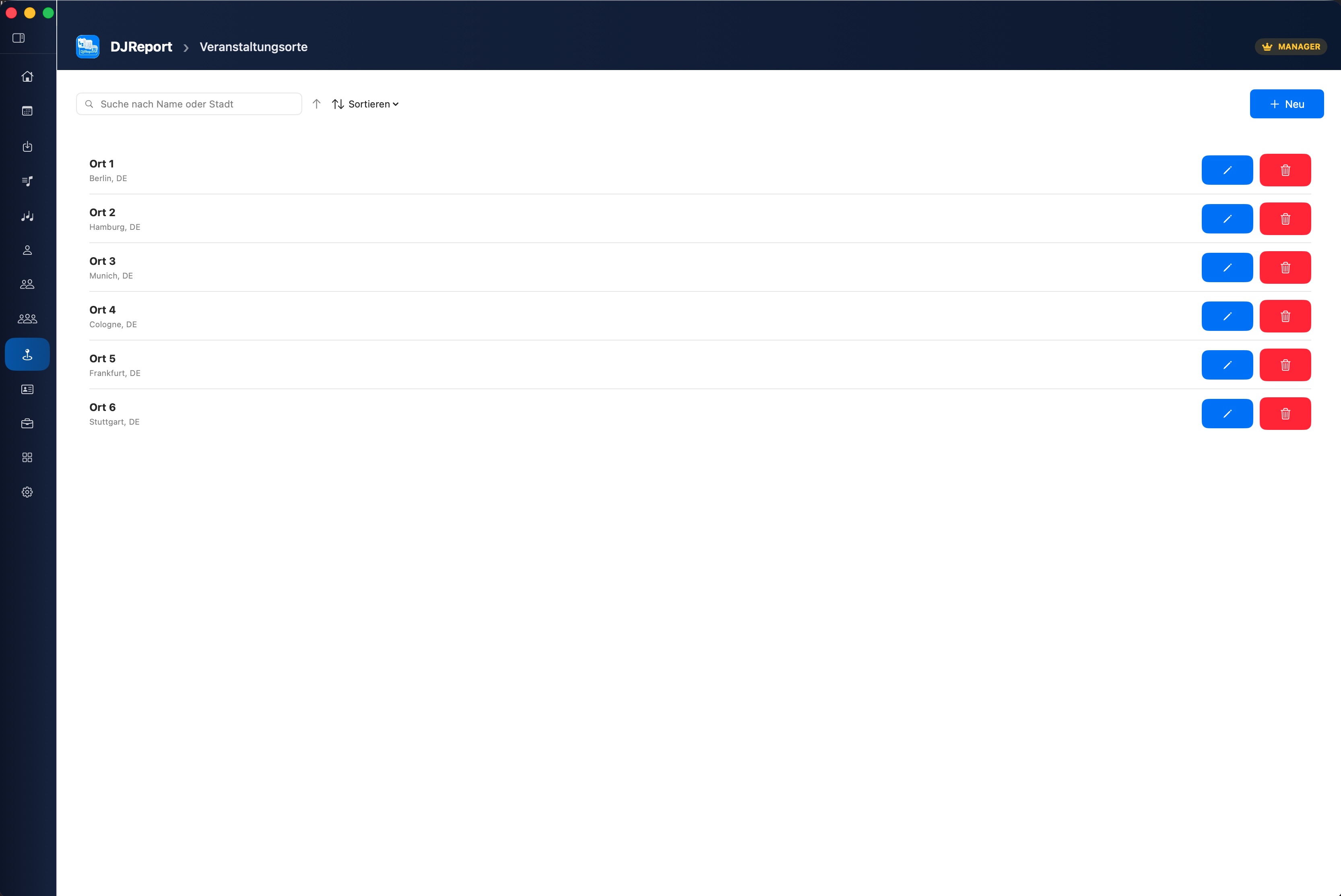
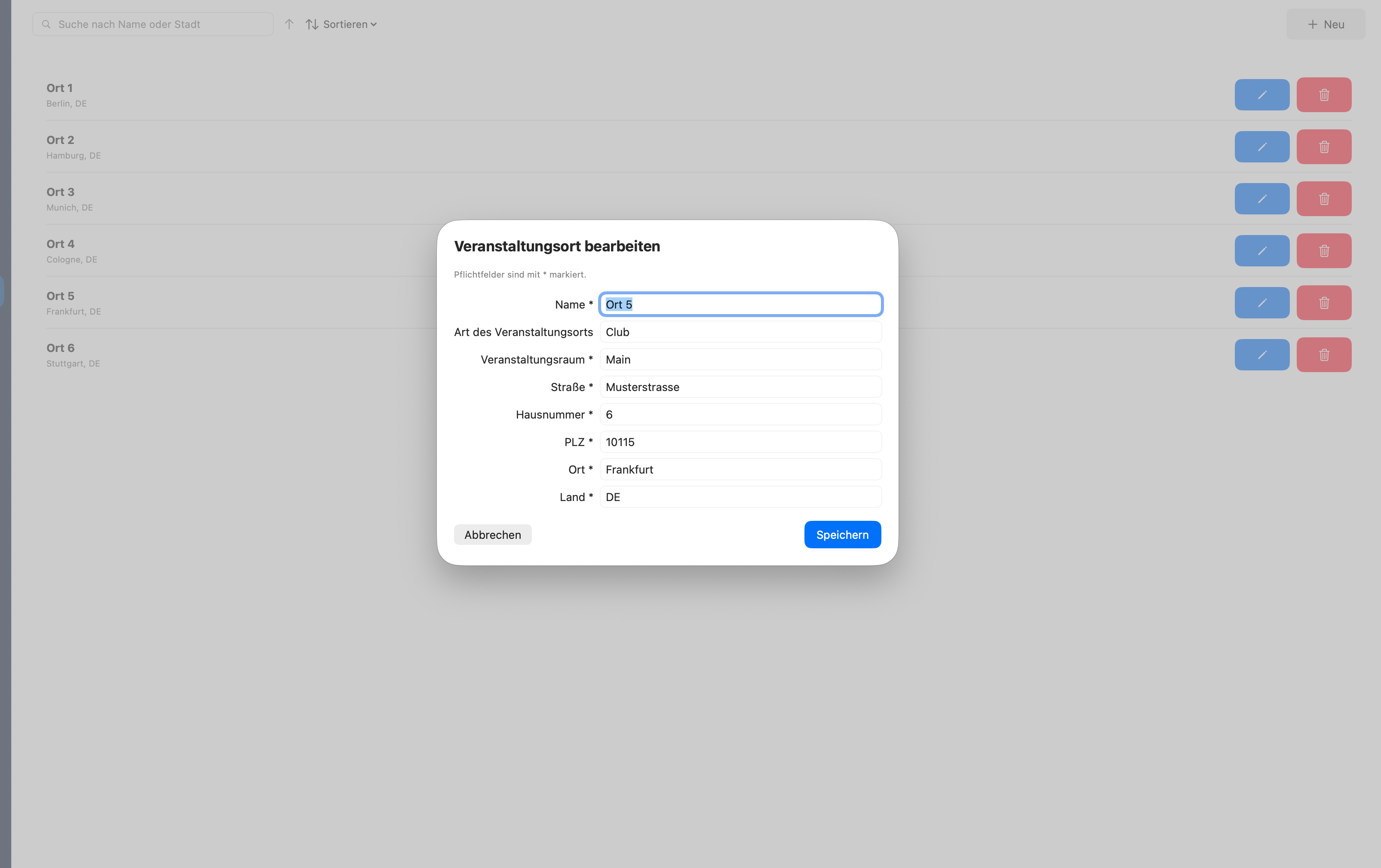
Manage all locations centrally. Each venue contains name, address and optional additional information. Like organisers: create once, reuse again and again.
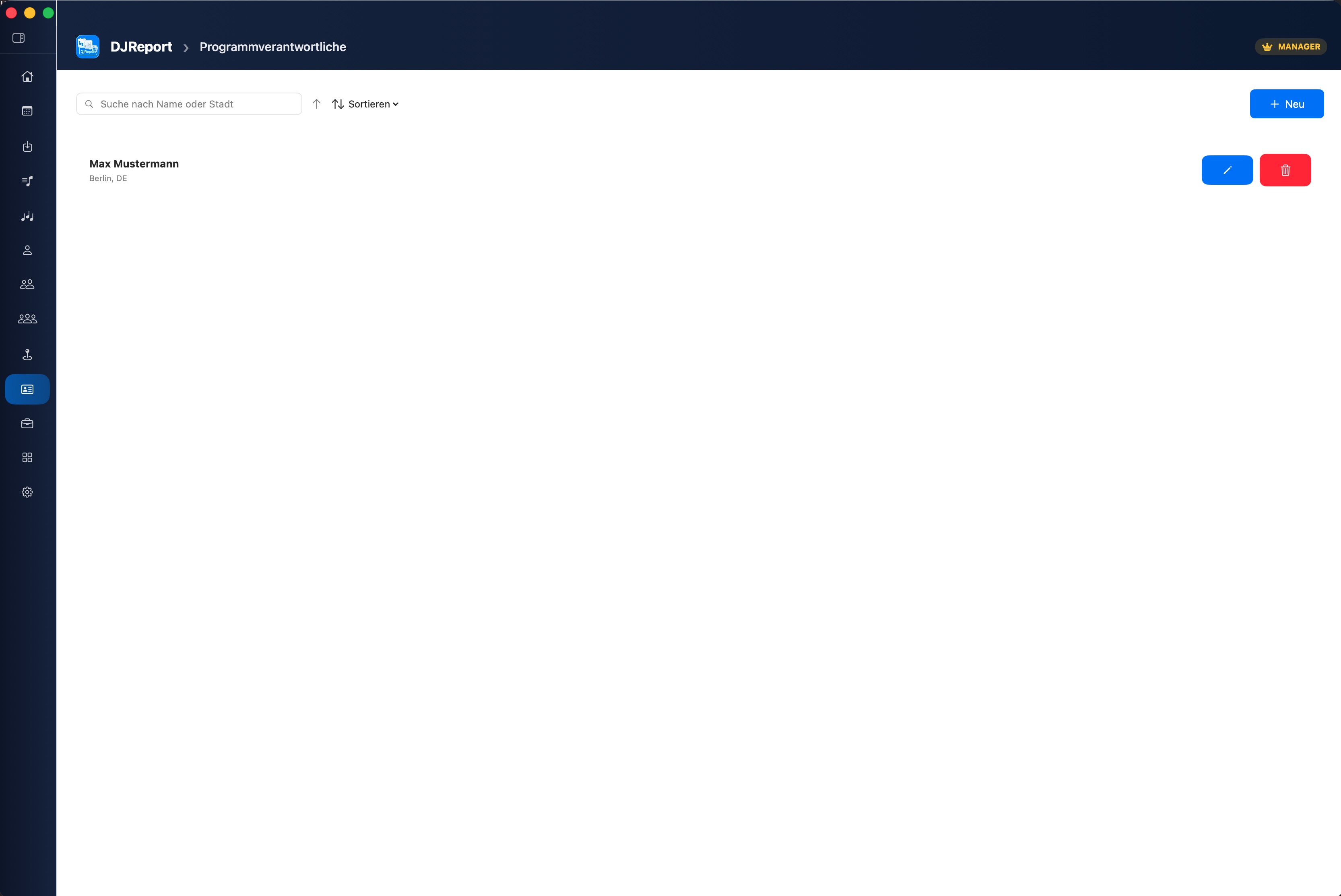
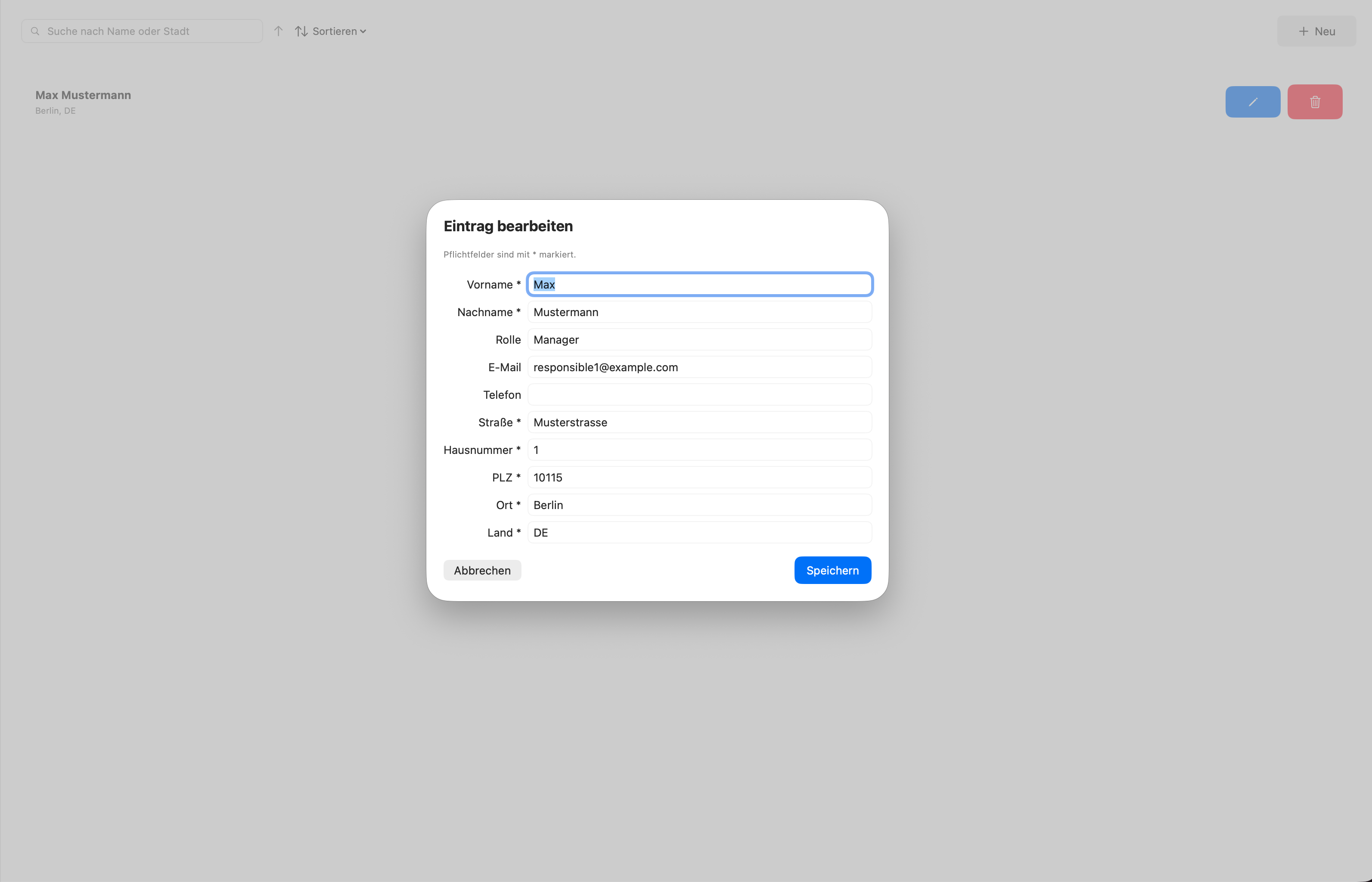
Programme Managers
The programme manager is the person responsible for the musical programme of the event. This information may be relevant for the GEMA report.
ArtistSYNC
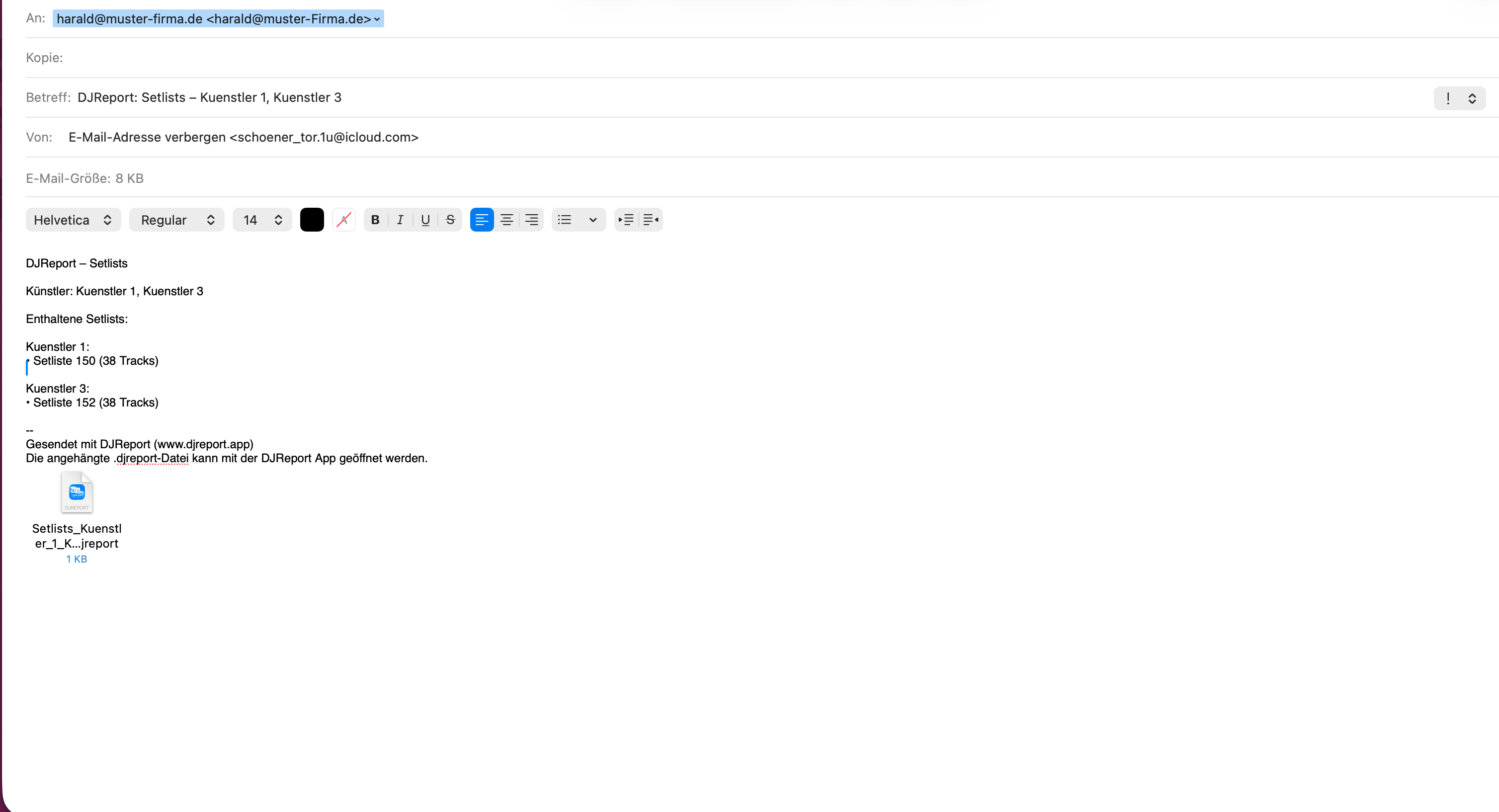
ArtistSYNC is the first paid subscription tier in DJReport and enables direct collaboration between artist and management. The artist sends selected setlists and events as a secure .djreport package via email or AirDrop to their management. Management imports the file with DJReport, processes the data and submits it to e.g. GEMA or publishers.
.djreport
Send Setlists & Events
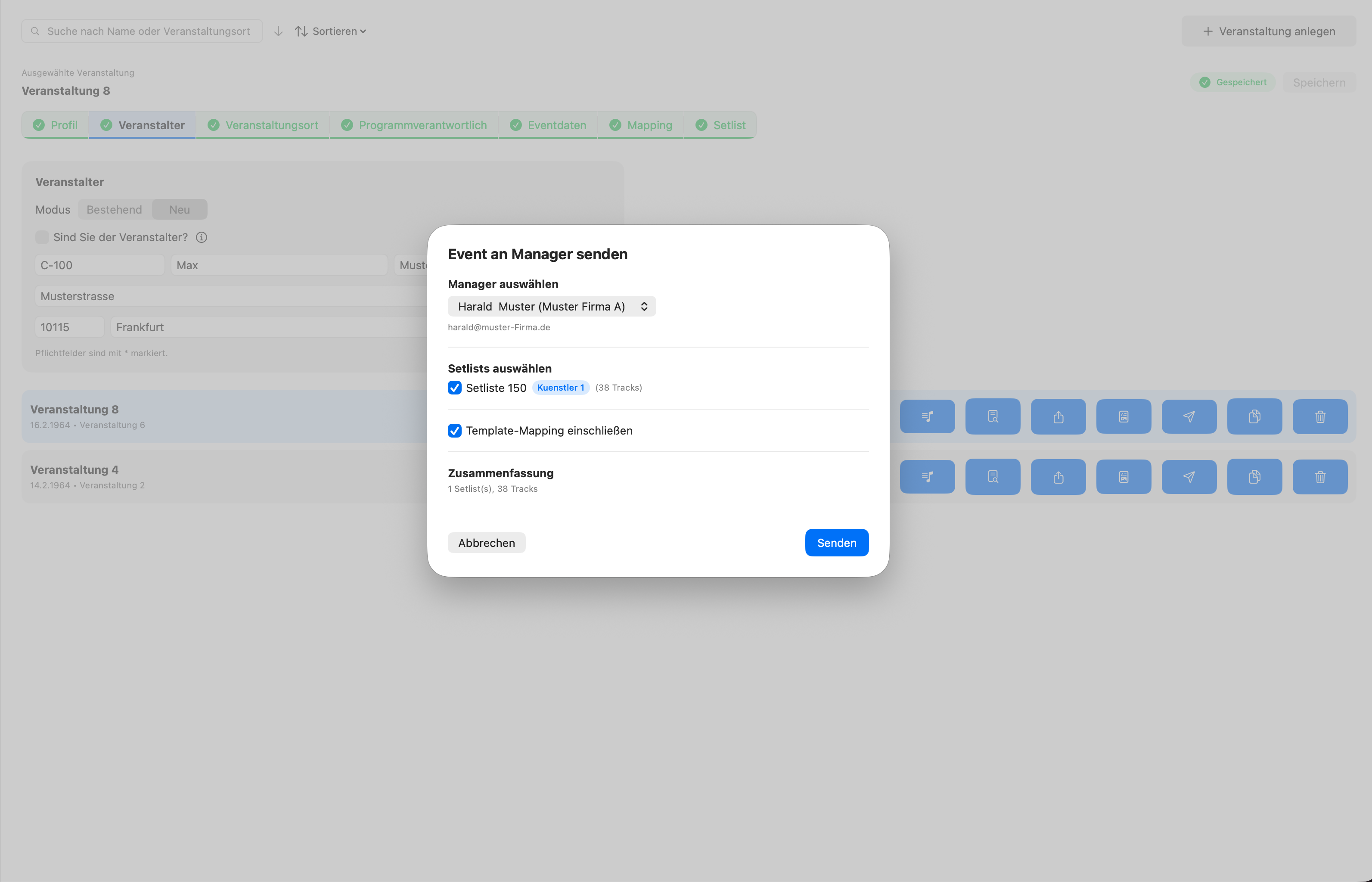
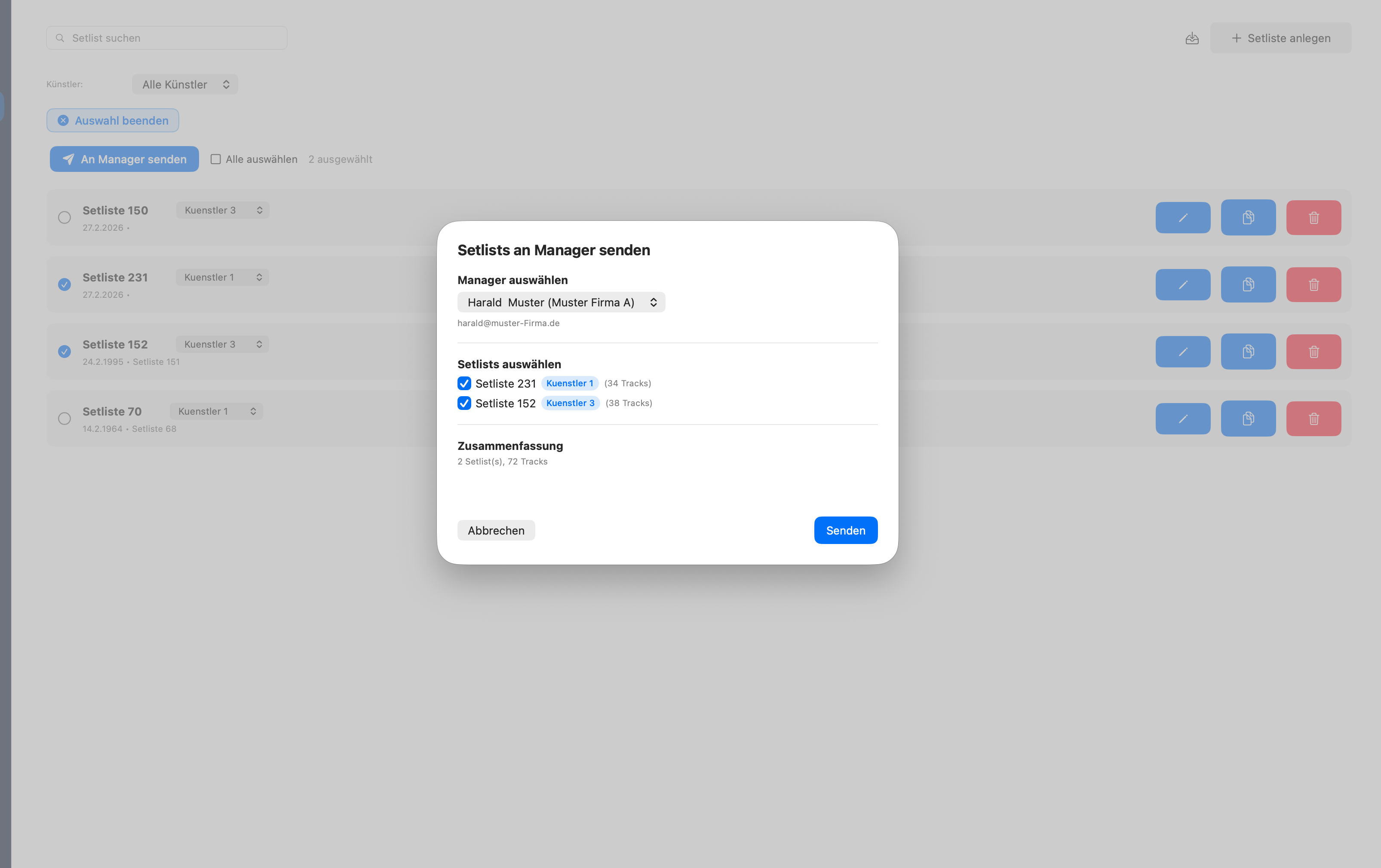
As an artist you can send individual setlists or use multi-select (multiple at once) to send them to a manager.
Open the Setlists area or an event in the Wizard (Step 7).
Activate selection mode in the toolbar and mark the desired setlists via checkbox. Alternatively: send a single setlist directly via the send button.
Tap "Send to Manager" and select the manager from your manager list.
The app automatically creates a .djreport package. Two buttons appear in the send dialog: "Send" opens a new email directly, "Share" opens the macOS sharing menu for AirDrop, WhatsApp, Messages and other services.
Manager Directory
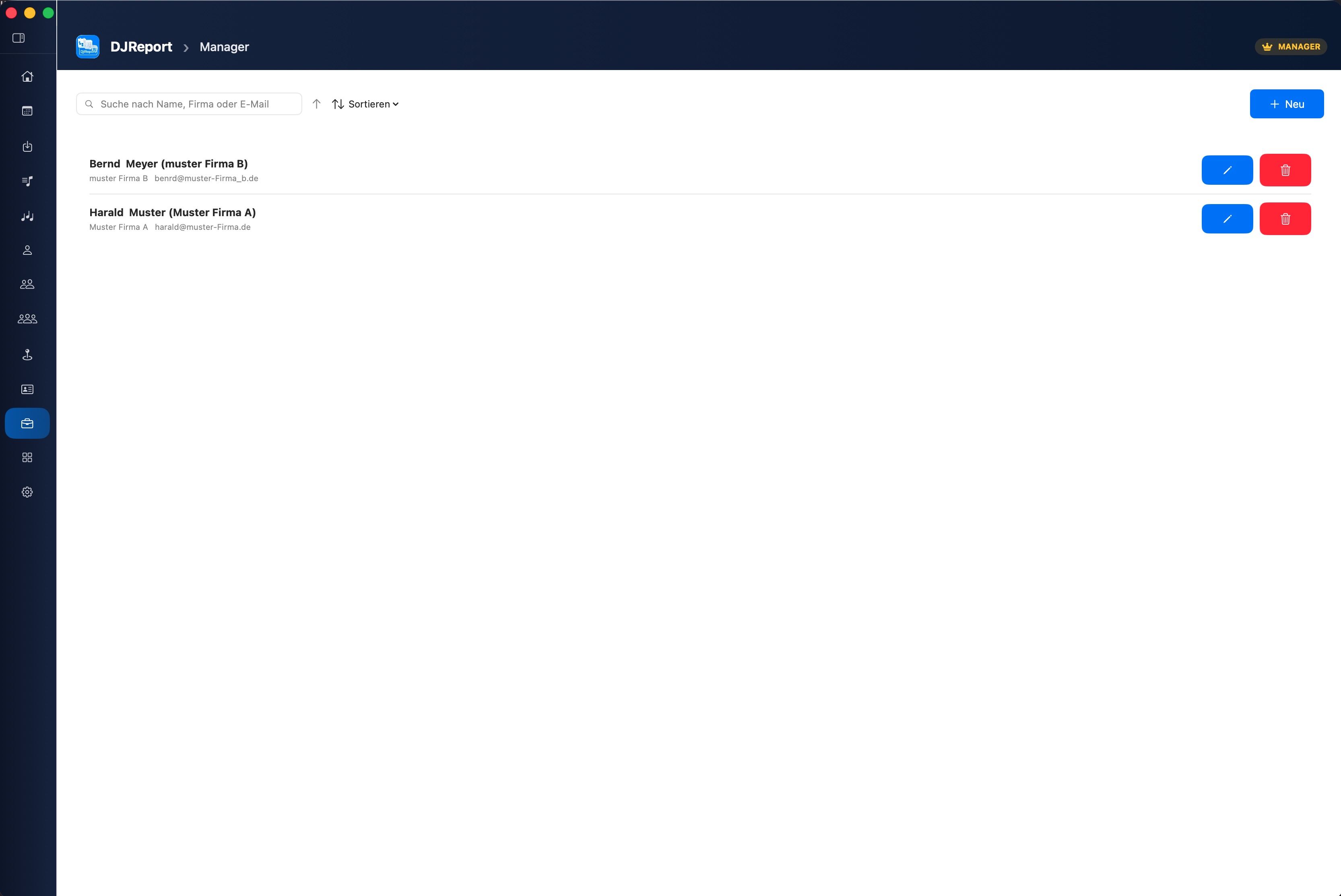
Under Manager (dedicated menu item in the sidebar) you manage the contacts you want to send setlists to.
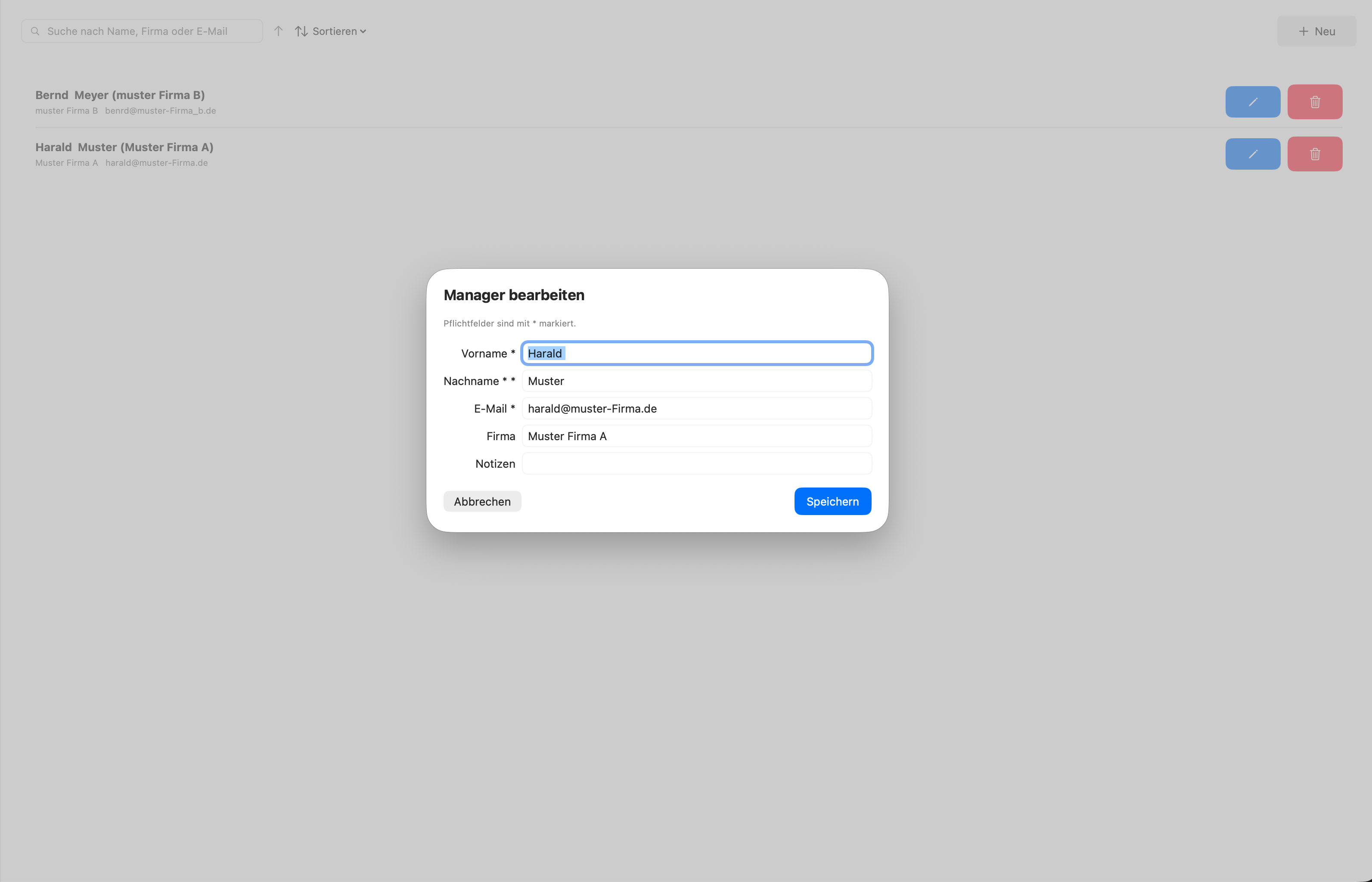
Each manager entry contains first name, last name, email and optionally company. Managers can be created, edited and deleted.
Receive & Import (Management)
Management receives the .djreport file via email or AirDrop and simply opens it – DJReport recognises the format automatically.
Open the file (double-click or "Open with DJReport").
DJReport shows a preview of the package contents – events, setlists, artist profiles.
Artist profiles are linked via email matching with existing profiles. New profiles are created automatically.
Confirm import – the data is immediately available for editing and GEMA export.
Pricing & Subscriptions
DJReport uses a hierarchical subscription model with three tiers. Every higher tier includes all features from lower ones.
| Tier | Monthly | Annual |
|---|---|---|
| ArtistSYNC | €4.99 / month | €49.00 / year (save 18%) |
| ArtistSYNC + Export | €9.99 / month | €99.00 / year (save 17%) |
| Manager Full Access | €19.00 / month | €199.00 / year (save 13%) |
| Feature | Free | ArtistSYNC | SYNC+Export | Manager |
|---|---|---|---|---|
| Events & setlists | ✓ | ✓ | ✓ | ✓ |
| Import (Rekordbox, Serato, CSV …) | — | ✓ | ✓ | ✓ |
| Templates & mappings, backup | — | ✓ | ✓ | ✓ |
| Manager send (.djreport) | — | ✓ | ✓ | ✓ |
| GEMA export (XLSX & PDF) | — | — | ✓ | ✓ |
| Create export templates | — | — | ✓ | ✓ |
| .djreport import (management) | — | — | — | ✓ |
| Manage artist profiles | — | — | — | ✓ |
Templates & Mapping
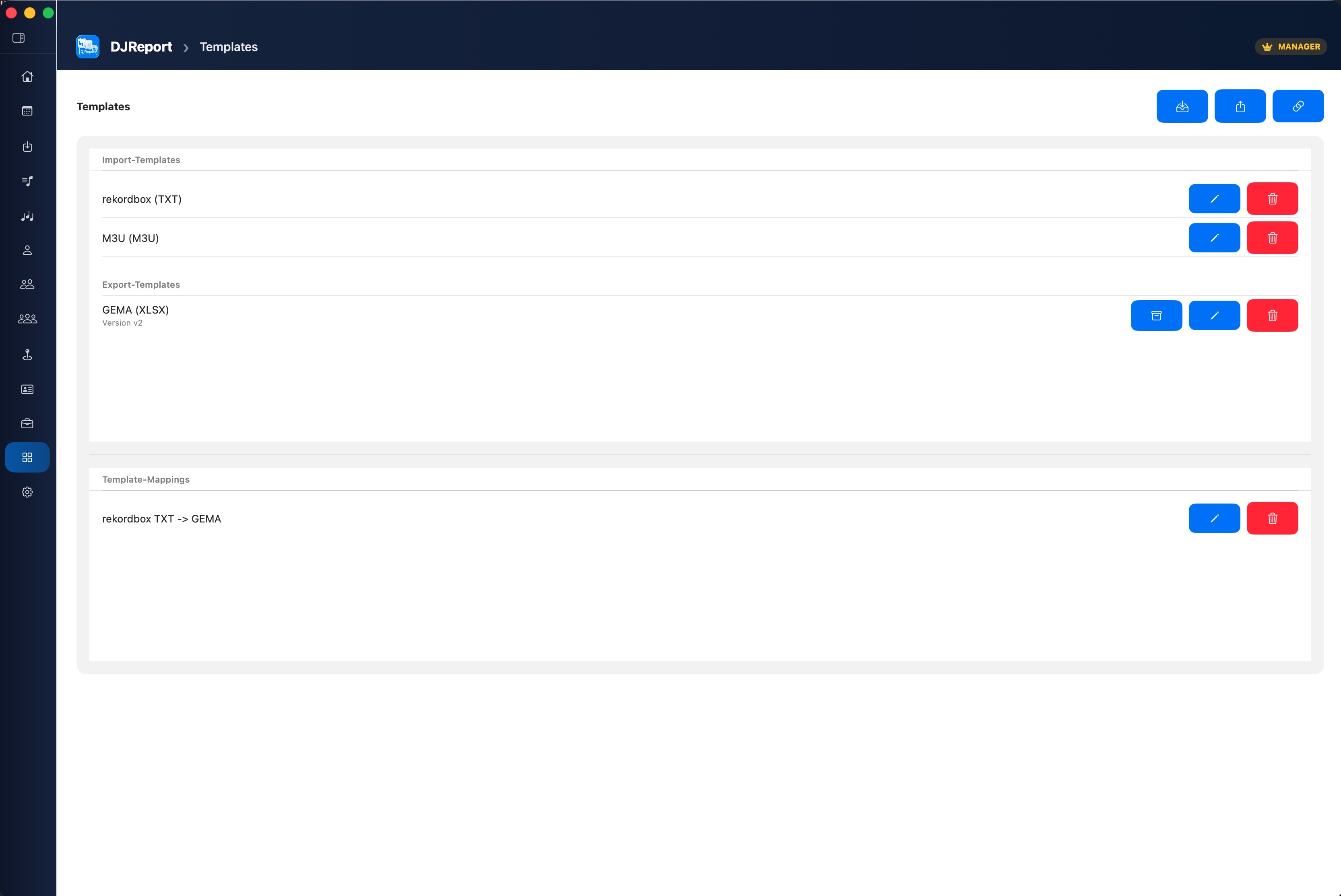
DJReport distinguishes two template types: import templates for reading CSV/TXT/M3U files and export templates for the output of your reports.
Export Templates
Export templates determine how your output file looks. You can:
- Use the built-in GEMA template (always available)
- Import a custom XLSX file – DJReport reads structure and headers
- Map fields to your template columns via mapping
- Name the template and save for future events
Import Templates
Import templates save your column mapping for CSV, TXT or M3U files. Once created, DJReport automatically recognises the format on the next import.
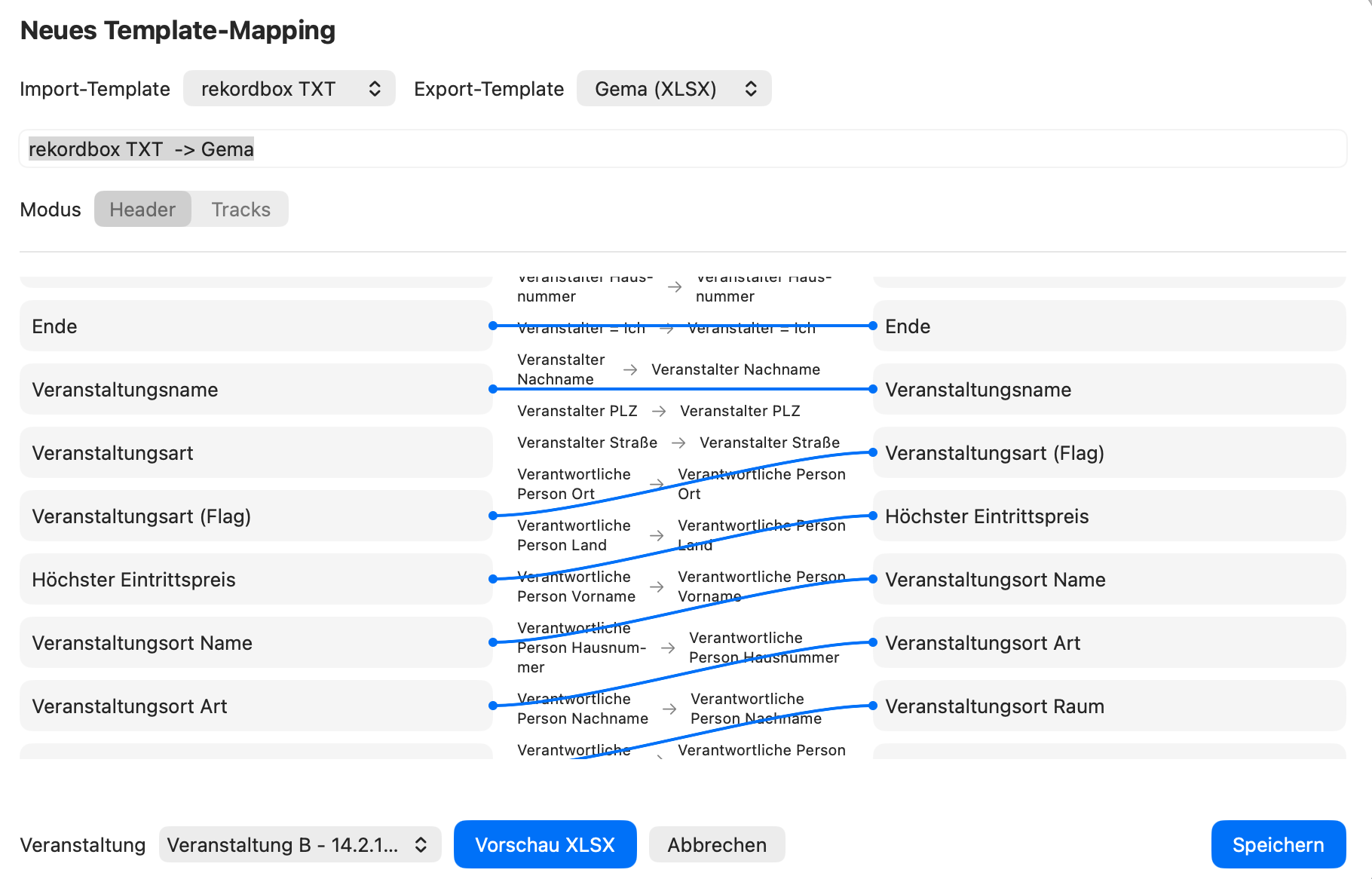
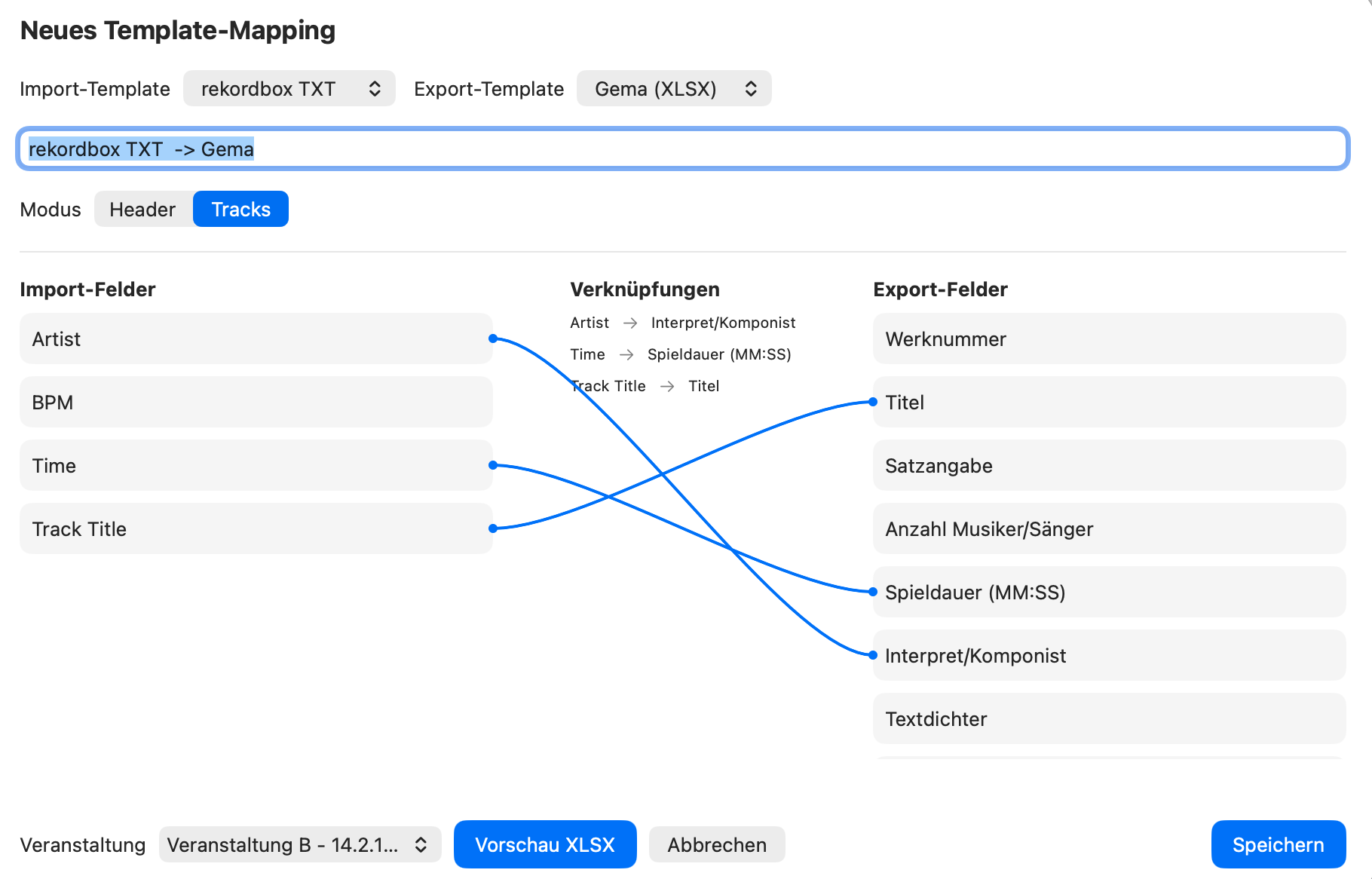
Default Mapping
Template mappings can be marked as the default mapping. The default mapping is automatically pre-selected in the Event Wizard (step 6) – no need to choose it manually every time. Use the "Set as default" option in the mapping list.
Change Language
Under Settings you can switch the language between German and English.
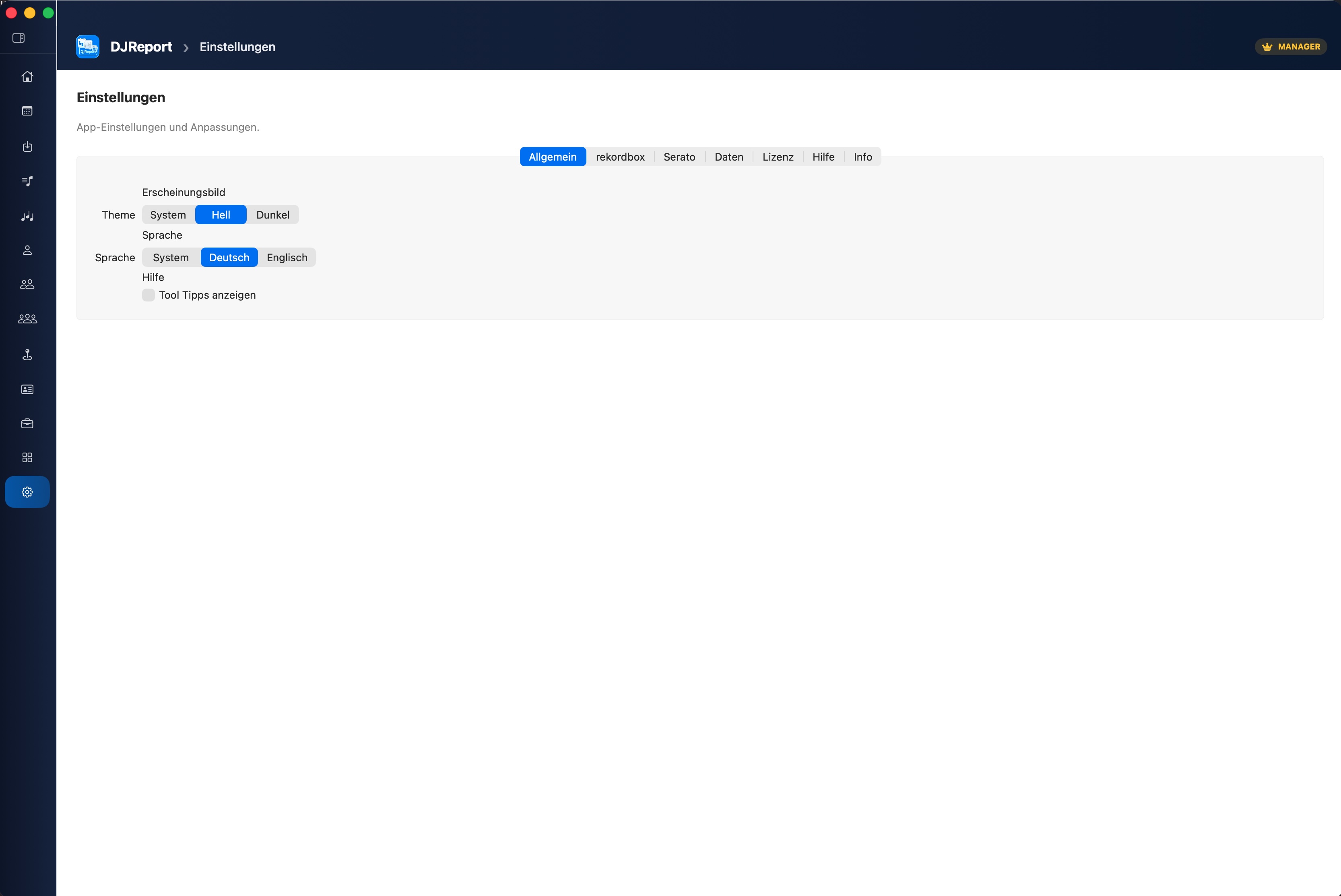
Tooltip Help
Under Settings > General you'll find the "Tooltip Help" section. Use the toggle to enable contextual hints at key functions – especially useful when getting started. When enabled, a green info box confirms the setting is active.
Customise Export Filename
Under Settings > General, enable "Use custom export format" to define your own filename for XLSX and PDF exports. Choose from: event name, date, venue, organiser, artist name. Options for date format and separator are also available. A live preview shows the result instantly.
Settings > Data
Under Settings > Data you'll find all functions related to data management, backup, import/export and resetting your app data.
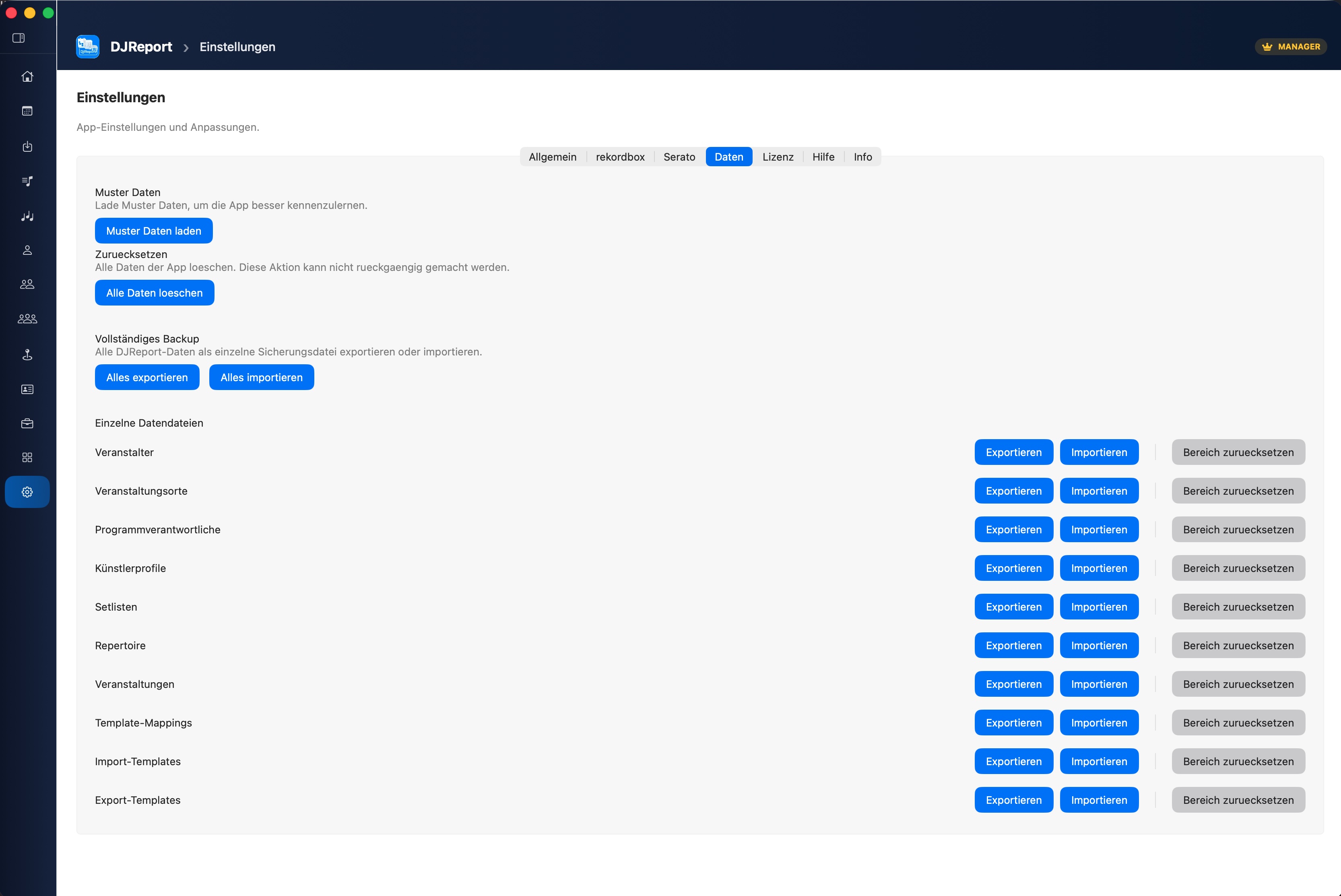
Load Sample Data
Sample data lets you try out all app features without entering your own data. The import can be started from several places:
- Settings > Data – Main import function with full category selection
- Templates page (empty) – Direct button "Load Sample Templates" when no templates exist yet
- First app start – Dialog recommending to load templates first
Category Selection
In the import dialog, you select via checkbox which data areas to load: import templates, export templates, template mappings, events, setlists, artist profiles, organisers, venues and programme managers.
Two quick-select buttons make selection easier: "Templates only" loads exclusively templates and mappings (recommended for beginners), "Select all" loads all categories.
Reset All Data
Via "Reset All Data" you delete all saved content from the app's local database. After confirmation, the data stock is empty.
Full Backup (Complete)
Export all: Creates a complete backup JSON file (e.g. DJReport-backup_2026-02-25_14-30.json) with all data areas:
- Organisers, venues, managers
- Artist profiles
- Setlists & events
- Template mappings
- Import templates
- Export templates (GEMA)
- Metadata (version + date)
Import all: Select a previously created backup JSON. After selection you are asked for the import strategy:
- Merge: New records are added, existing ones are updated if applicable. Your existing data is preserved.
- Overwrite: All existing data is completely replaced by the imported data.
Export / Import / Reset Individual Sections
For each data area there are separate buttons to specifically export, import or reset only that area – without touching other data.
Available areas:
- Organisers
- Venues
- Programme managers
- Artist profiles
- Setlists
- Events
- Template mappings
- Import templates
- Export templates (GEMA)
Import Strategy: Merge vs. Overwrite
On import – whether full or individual section – you are always asked for the strategy:
Merge – New records are added, existing ones are updated if applicable. Ideal when taking data over from another device.
Overwrite – The data in this area is completely replaced by the imported data. Ideal for a clean restore.
Licence & Subscriptions
DJReport is available free of charge with basic functionality. With a subscription you unlock additional features depending on the tier. A full overview of all tiers and pricing can be found in the Pricing & Subscriptions section.
Available for free: Events, setlists, master data, sample data and reset of individual data sections.
In the free version an upgrade notice appears at the bottom of the sidebar. Locked actions are visible but disabled.
The licence view immediately shows your current subscription status (Free / ArtistSYNC / ArtistSYNC + Export / Manager Full Access). The App Store query runs in the background.
Keyboard Shortcuts
DJReport supports global keyboard shortcuts that are available at any time – regardless of which area is currently open. You'll also find them in the macOS menu bar.
| Shortcut | Action |
|---|---|
| ⌘1 | Open Dashboard |
| ⌘2 | Open Events |
| ⌘3 | Open Import |
| ⌘4 | Open Setlists |
| ⌘, | Open Settings |
| ⌘N | Create new event |
| ⌘S | Save (in Event Wizard) |
Common Issues
Language doesn't change
The app must be restarted after changing the language. A notice appears automatically.
Setlist preview is empty
Check whether the correct setlist is assigned to the event and whether the setlist contains tracks.
Export without content
Make sure a mapping assignment is selected and all required track fields are filled in.
"Python runtime not found"
The Rekordbox/Serato import requires the embedded Python runtime. If this message appears, the app may have been corrupted. Please re-download the app from the App Store.
"App is damaged"
This happens when the code signature is invalid. Re-download the app from the App Store or check whether a security program has modified the app.
Rekordbox/Serato database not found
Grant DJReport Full Disk Access: System Settings > Privacy & Security > Full Disk Access > Add DJReport.
"GEMA import failed"
Check that the XLSX file was correctly exported from the GEMA portal (not manually renamed or saved in a different format). Re-export the file directly from the portal and try the import again.
Frequently Asked Questions (FAQ)
Is my data transferred to the internet?
No. DJReport works 100% locally. All data stays on your Mac. There is no cloud connection, no account and no data transfer to the provider.
Do I need an account?
No. DJReport does not require an account. The only internet connection is the licence check via the App Store (Apple standard).
Does DJReport work with Apple Silicon (M1/M2/M3)?
Yes. DJReport runs natively on Apple Silicon and Intel Macs. The embedded Python runtime supports both architectures.
Can I use the app offline?
Yes, all features (except the initial licence check) work completely offline.
What's the difference between the subscription tiers?
Free: events, setlists, master data, import (Rekordbox, Serato, CSV), backup & repertoire. ArtistSYNC (€4.99/month): + templates & mappings, manager send. ArtistSYNC + Export (€9.99/month): + GEMA export, export templates. Manager Full Access (€19.00/month): + .djreport import, manage artist profiles.
Are my reports really GEMA-compliant?
DJReport creates reports based on the GEMA requirements known at the time of use. A guarantee for acceptance or legal validity cannot be given, as GEMA may change its requirements.
Can I back up my data?
The full backup (create & import) is available in the Free version. Section-level export and import of individual files requires ArtistSYNC + Export.
Which DJ software is supported?
Currently: Rekordbox (database + XML), Serato DJ (crates + history sessions), and CSV/TXT/M3U for all other sources.
How do I cancel my subscription?
The subscription is managed via the Apple App Store. Go to System Settings > Apple ID > Media & Purchases > Manage Subscriptions.